
Change the Digital Picture Board settings
Do this when you want to change how the Digital Picture Board looks on your church’s TV. For example, you can show fewer families at a time, change the colors, or put your logo on the board.
Who can do this: you need Edit access to Member Directory. Other people do not see Picture Board Settings in the menu.
Open the settings
Section titled “Open the settings”- On a computer, click Manage > Settings > Picture Board Settings in the menu.
- On a phone, tap Menu at the bottom, then go to Manage > Settings > Picture Board Settings.
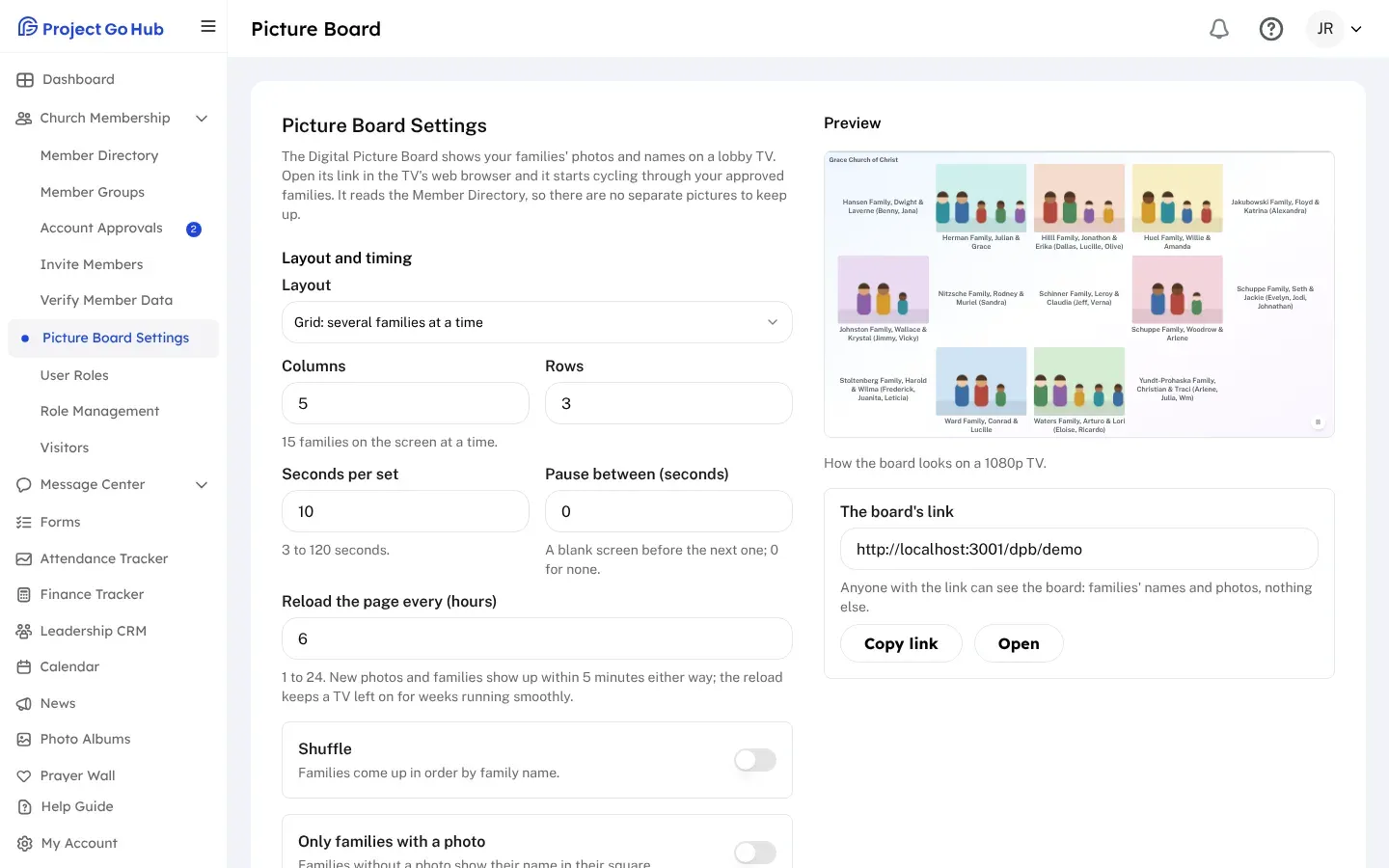
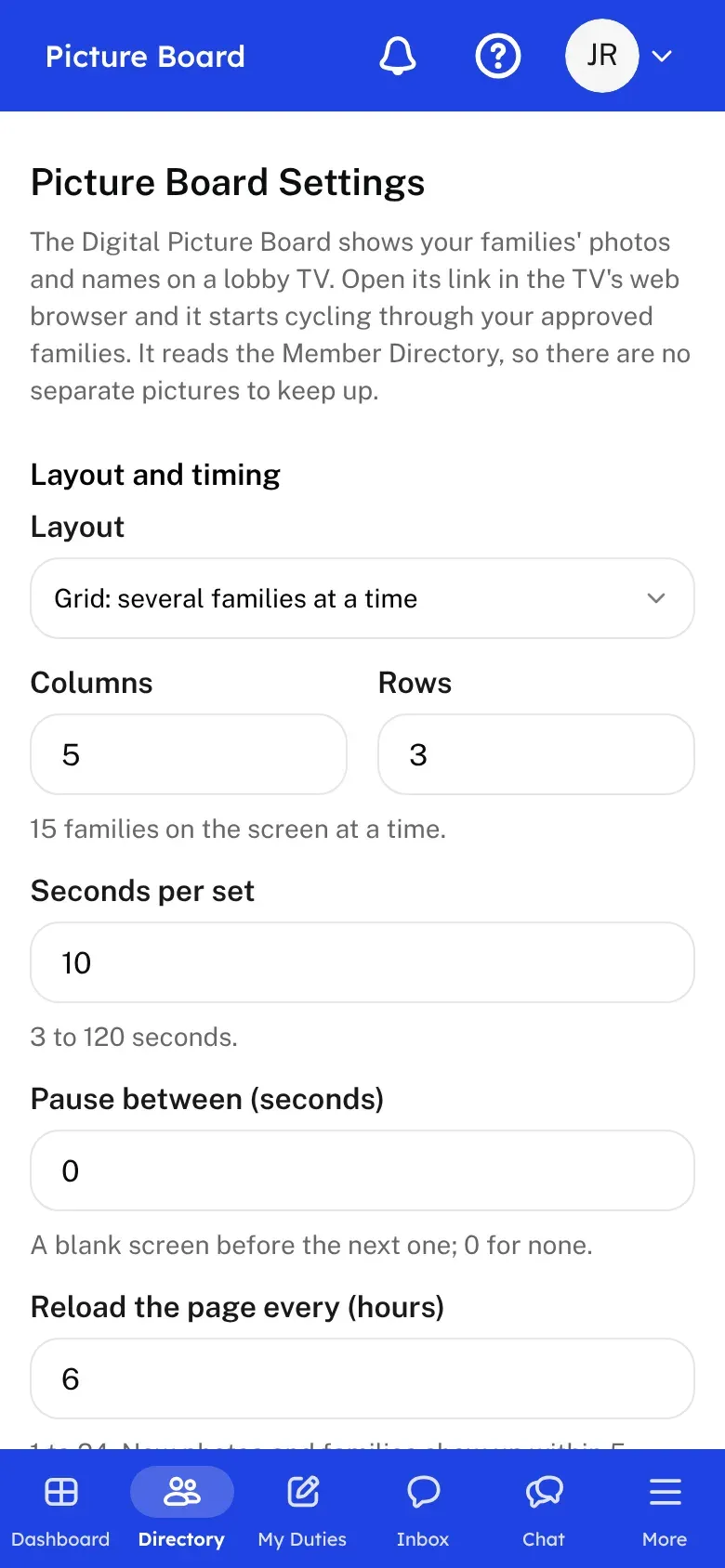
On a computer, the preview is on the right. On a phone, the settings come first and the preview is below them.
Change a setting
Section titled “Change a setting”- Change any setting below. The Preview shows the board with your changes before you save. It shows how the board looks on a 1080p TV. You cannot click the buttons in the preview.
- Click Save. The message Picture Board saved shows.
- To go back to what was last saved, click Undo changes.
Save and Undo changes are grey until you change something.
A TV that is showing the board picks up your changes within 5 minutes.
Layout and timing
Section titled “Layout and timing”| Setting | What it does |
|---|---|
| Layout | Grid: several families at a time shows many families on one screen. Full: one family fills the screen shows one family at a time, with the name under the picture. |
| Columns | How many families go across. A whole number from 1 to 8. Shows only for the grid layout. |
| Rows | How many families go down. A whole number from 1 to 6. Shows only for the grid layout. |
| Seconds per set | How long each screen stays before the next one. 3 to 120 seconds. With the full layout, this box is called Seconds per family. |
| Pause between (seconds) | A blank screen between one screen and the next. 0 to 30 seconds. Use 0 for no blank screen. |
| Reload the page every (hours) | How often the board reloads itself. 1 to 24 hours. |
| Shuffle | Off: families come up in order by family name. On: families come up in a random order. |
| Only families with a photo | Off: a family without a photo shows its name in its square. On: families without a photo are left off the board. |
Under Columns and Rows, the page shows how many families are on the screen at a time, for example “15 families on the screen at a time.”
Display
Section titled “Display”| Setting | What it does |
|---|---|
| Header text | The words at the top left of the board. Up to 120 characters. Leave it empty to show your church’s name. |
| Show the church logo | Shows your church logo next to the header. The logo is set in Customization. |
| Background color | The color behind the families. |
| Text color | The color of the header and the family names. |
| Arrows and controls color | The color of the arrows, the pause button and the bar at the top. |
| Font | Public Sans (the app’s font), Lexend or Serif. |
| Header size (px) | The size of the header text, from 12 to 160. Leave it empty for 24. |
| Name size (px) | The size of the family names, from 10 to 120. Leave it empty to size the names to the screen. |
For each color, click the color box to pick a color. Click Reset to go back to the board’s own color. Until you pick one, the page shows what the board uses: Default: Light blue fade for the background, and Default: Dark gray for the text and the controls.
Copy or open the board’s link
Section titled “Copy or open the board’s link”Under the preview, The board’s link is the web address of your board. Click Copy link to copy it. Click Open to open the board in a new tab.
To put the board on a TV, see Show the Digital Picture Board on a screen.
Good to know
Section titled “Good to know”- A church that has never saved these settings keeps the board as it was. The number of families on a screen depends on the window width, and each screen stays for 10 seconds.
- The board shows approved families from the Member Directory. There are no separate pictures to add here. To change a picture, see Change a family picture on the board.
- Anyone who has the board’s link can see the board: the family names and pictures, nothing else.
- The number boxes stop you from typing a number outside the allowed range. If a number is wrong when you save, the page shows Not saved and says what to fix, for example “Columns must be a whole number from 1 to 8.”
- If you click a menu item while you have changes that are not saved, the page asks before it lets you go.
- The board reloads itself only when your church’s Wi-Fi works. If the TV is offline at that time, it keeps showing the board and tries again a minute later.
- If the page cannot load the settings, you see The Picture Board settings could not be loaded with a button to try again.
Still stuck?
Section titled “Still stuck?”Use the Contact support page, or email [email protected]. Tell us your church name and what you tried.
Was this page helpful?
We record searches and page feedback, with no names, emails or IP addresses, to improve these articles.