
Close a month
Do this when a month’s books are done, for example after the treasurer checked them against the bank. Closing a month locks every record dated on or before its last day.
Who can do this: You need Edit access to Finance Tracker. Anyone with Edit access can close and reopen a month. If you do not see Finance Tracker in the menu, ask your church admin.
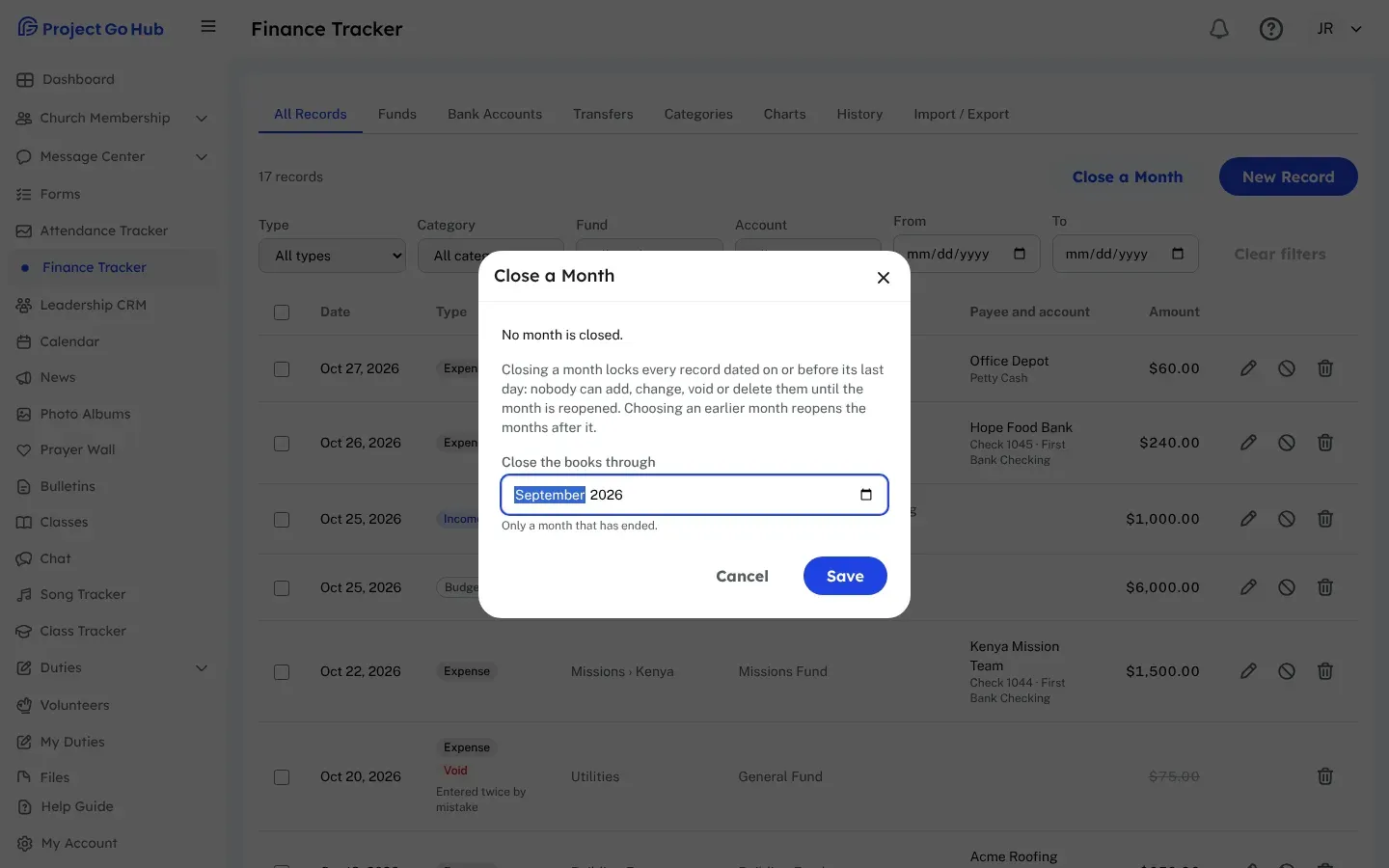
Close a month
Section titled “Close a month”- Open the Finance Tracker. On a computer, click Manage > Attendance & Records > Finance Tracker in the menu. On a phone, tap Menu at the bottom, then go to Manage > Attendance & Records > Finance Tracker.
- On the All Records tab, click Close a Month.
- In Close the books through, choose a month.
- Click Save.
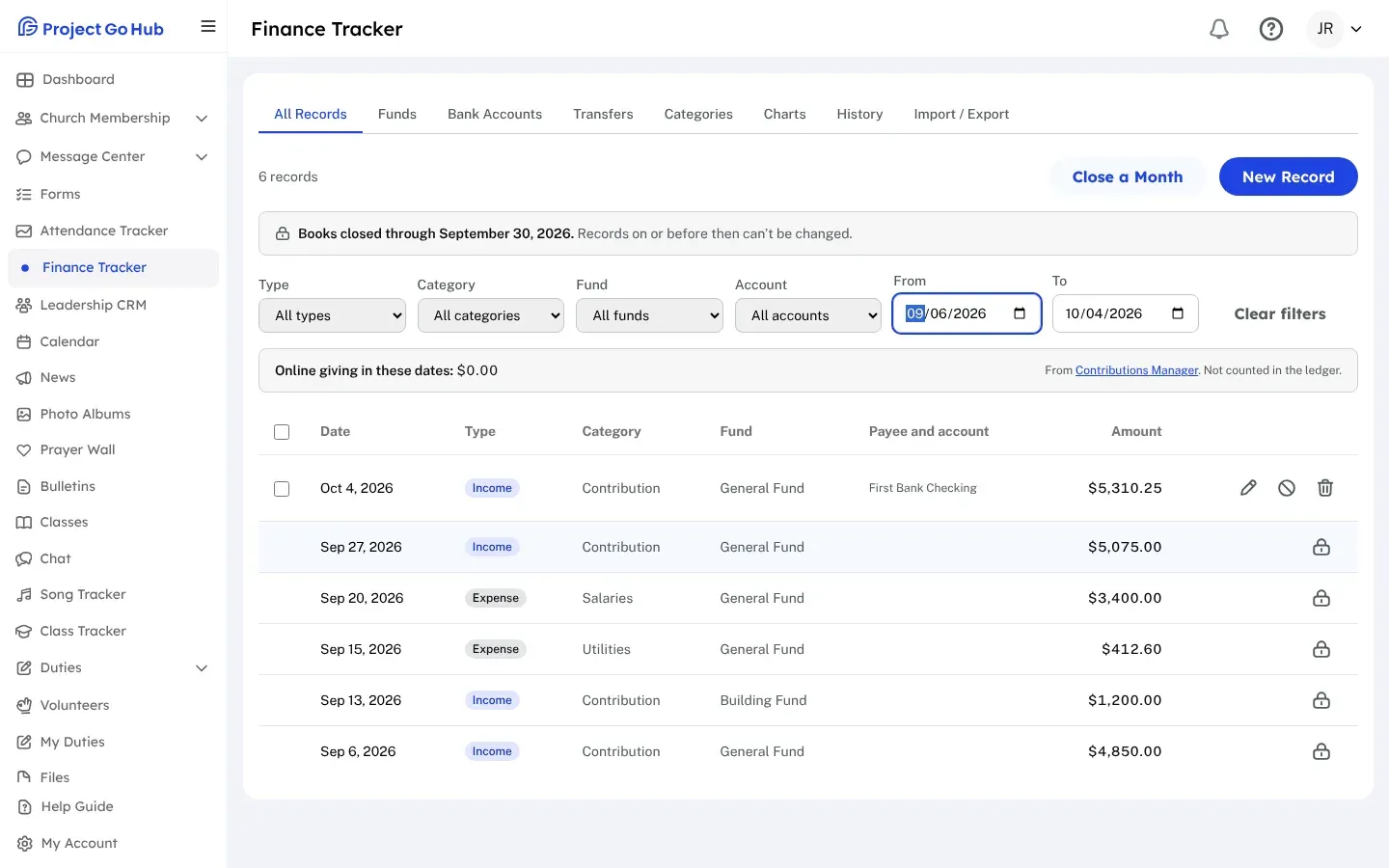
You see, for example, Books closed through September 30, 2026. A bar above the filters on All Records shows how far the books are closed.
Records dated on or before that day now show a lock instead of the buttons.
Reopen months
Section titled “Reopen months”- On the All Records tab, click Close a Month.
- To open every month, click Reopen All Months.
- To open only some months, choose an earlier month in Close the books through, then click Save. The months after it are open again.
You see All months are open. or Books closed through the new date.
Good to know
Section titled “Good to know”- You can only close a month that has ended. The newest choice is last month.
- Nobody can add, change, void, delete or import a record dated on or before the last closed day. This is true for every month before it too. If someone tries, they see The books are closed through September 30, 2026. Reopen that month to change its records.
- The same goes for transfers. A transfer dated on or before the last closed day shows a lock on the Transfers tab, and a bar says Transfers on or before then can’t be changed. See Move money between accounts or funds.
- An import with a row in a closed month imports nothing. That row’s problem says The books are closed through the date.
- A closed month’s records have no box to tick, so Delete Selected cannot include them.
- A category that a record in a closed month uses cannot be deleted. Rename it, or reopen the month.
- A bank account’s opening date cannot be in a closed month, and an account whose opening date is in one cannot have its opening balance or date changed. See Set up bank accounts.
- A closed month can still be seen, filtered, charted and exported.
- Closing and reopening are written in the History tab, with the name of the person. See See the history of your finance records.
- The window shows who closed the books, for example The books are closed through September 30, 2026, by Jordan Reed.
- There is one closing date for the whole church. You cannot close a month and leave an earlier one open.
Still stuck?
Section titled “Still stuck?”Use the Contact support page, or email [email protected]. Tell us your church name and what you tried.
Was this page helpful?
We record searches and page feedback, with no names, emails or IP addresses, to improve these articles.