
Log in to Project Go Hub
Log in to open your Project Go Hub Dashboard. If you cannot log in or cannot sign in, see the end of this page.
You need an account that a church admin has approved. If you do not have one yet, see Sign up for an account.
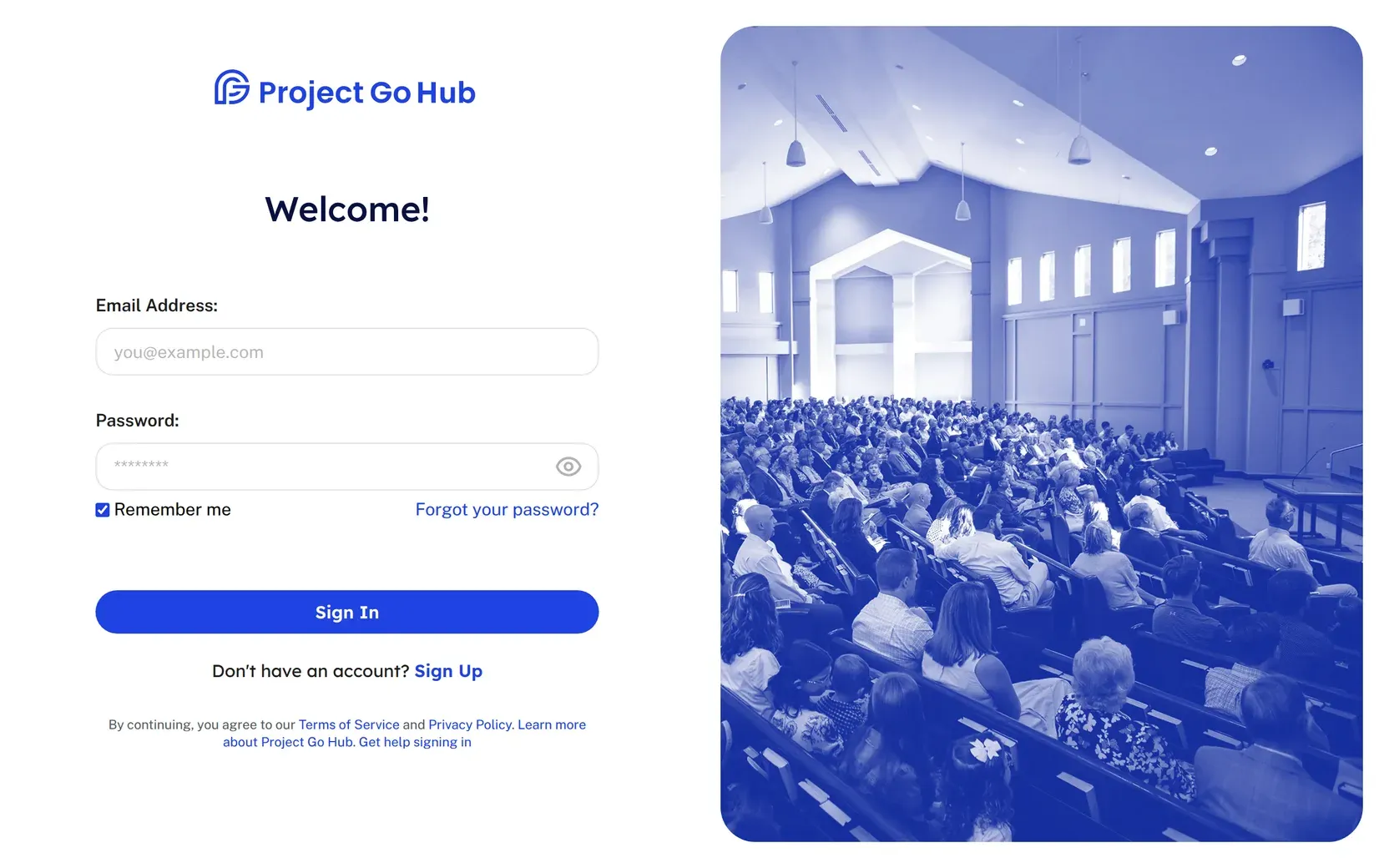
- Open Project Go Hub. The log in page opens when you are not logged in. If your church gave you its own link, use that link.
- Type your email in Email Address.
- Type your password in Password.
- Click Sign In.
The Dashboard opens.
Your church’s log in page
Section titled “Your church’s log in page”Your church can give you its own link. That page shows your church’s logo and says “Sign in to” and your church’s short name. If your church has no logo, you see the Project Go Hub logo. The page is one centered column with no picture.
The log in page you get without a church link looks the same as before.
For church staff: share your church’s log in link
Section titled “For church staff: share your church’s log in link”Give members your church’s own link. Its page shows your church’s name, so they can see it is your church’s page. The link is your Project Go Hub web address, then /signin/, then your church’s short name in Project Go Hub. Your church’s short name is also at the end of your Digital Picture Board address, after /dpb/. See Open the Digital Picture Board.
For people who do not have an account yet, the sign-up link is the same with /register/ in place of /signin/.
If you can’t log in
Section titled “If you can’t log in”- You forgot your password. See Reset your password.
- You see “Email or password is incorrect. If you have never set a password, use “Forgot your password?” to make one.” Check your email address and password. If your church set up your account for you, it has no password yet: click Forgot your password? to make one.
- You typed a wrong password five times, each within 5 minutes of the last. Log in is then paused for 30 minutes for that email, and during that time even the right password gets the same “Email or password is incorrect” message. If you share the email with someone in your household, the pause is for both of you. Wait 30 minutes, or reset your password: a new password ends the pause for everyone on the email. See Reset your password.
- You see “Account is pending approval.” A church admin must approve your request first. Watch your email for updates.
- You see “Account was rejected.” Your church denied your request. Contact your church office.
- You see “We could not sign you in. Please try again in a moment.” Project Go Hub could not finish your log in. Wait a moment, then click Sign In again.
Still stuck?
Section titled “Still stuck?”Use the Contact support page, or email [email protected]. Tell us your church name and what you tried.
Was this page helpful?
We record searches and page feedback, with no names, emails or IP addresses, to improve these articles.