
Set up teachers, grades and topics
Do this before you add your first class. Each class can have teachers, one grade and topics, and you pick them from these lists.
Who can do this: you need Edit access to Class Tracker. See Understand roles and access levels.
Open the Class Tracker
Section titled “Open the Class Tracker”On a computer, click Manage > Attendance & Records > Class Tracker in the menu. On a phone, tap Menu at the bottom, then go to Manage > Attendance & Records > Class Tracker. The tabs are All Classes, Teachers, Grades, Topics and Import / Export. On a phone, slide the tabs sideways to see them all.
Add a teacher
Section titled “Add a teacher”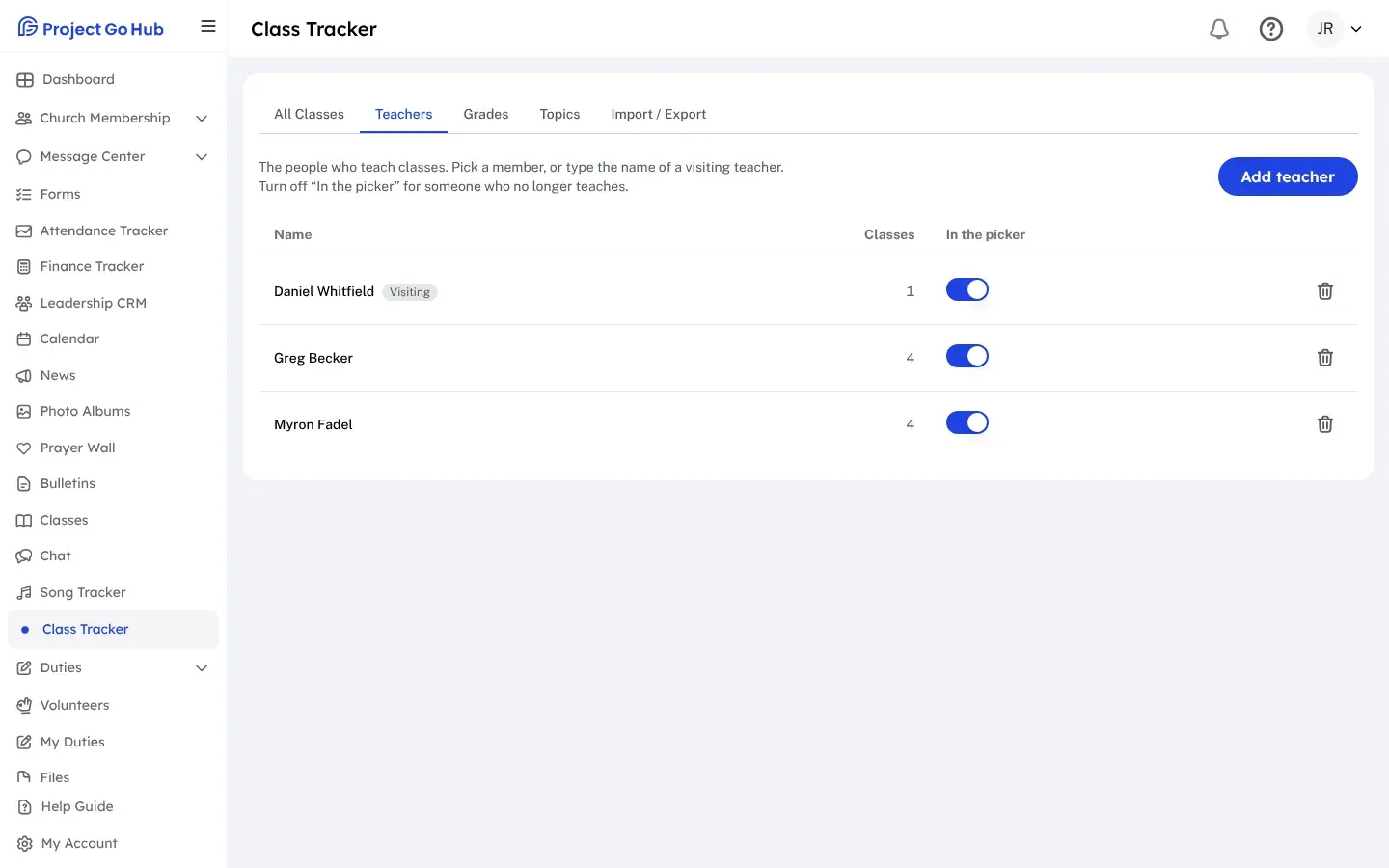
- Click the Teachers tab.
- Click Add teacher.
- Choose A member or A visiting teacher.
- For a member, type part of the name in Search members, then click the name. For a visiting teacher, type the name in Visiting teacher’s name.
- Click Add teacher. The toast says Teacher added.
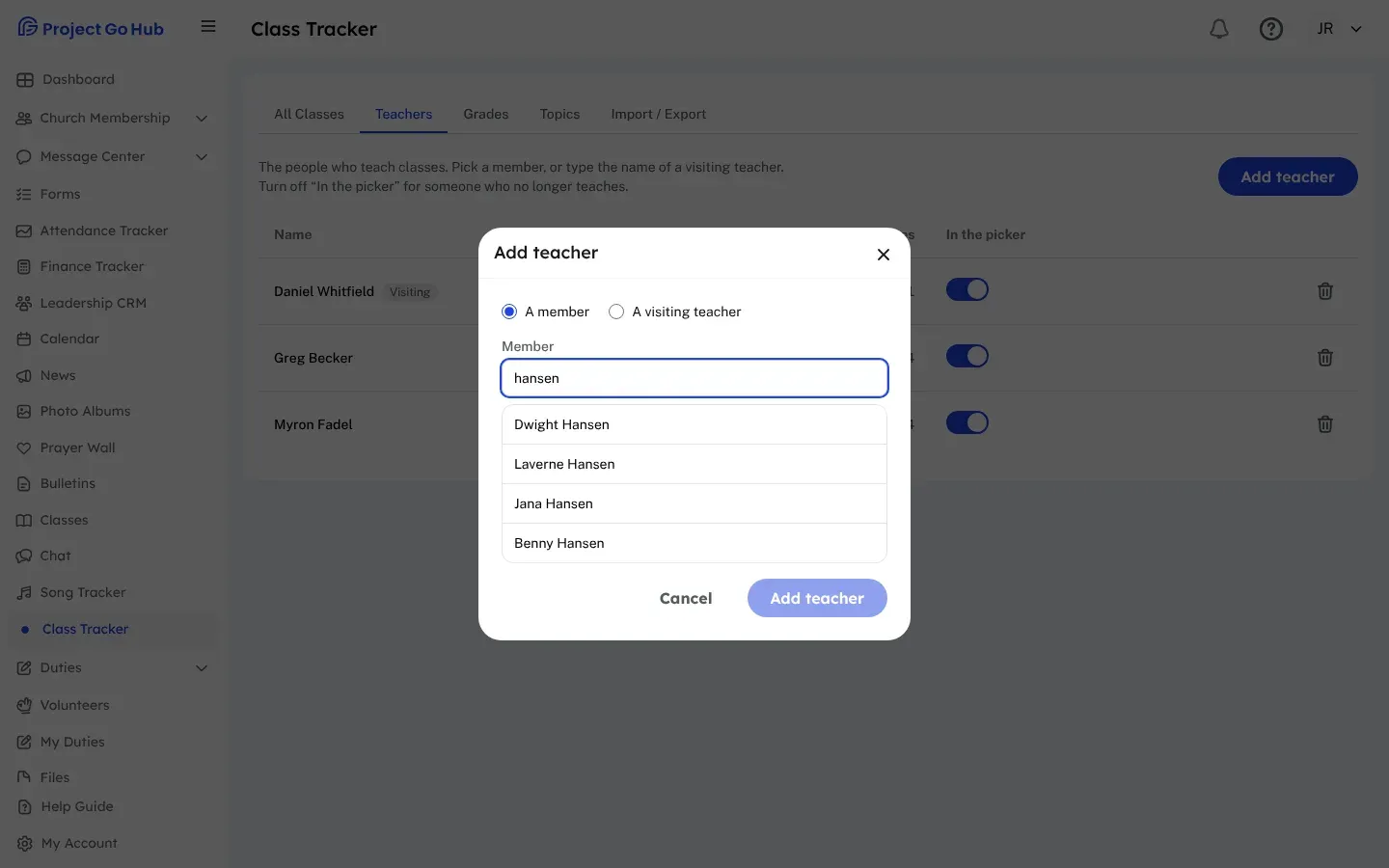
A teacher who is a member comes from your Member Directory, so the name is spelled the same everywhere. A visiting teacher shows a Visiting label.
Take a teacher out of the picker
Section titled “Take a teacher out of the picker”Turn off In the picker for a teacher who no longer teaches. The name stops showing when you add a class. It stays on the classes the person already taught. Turn the switch on to bring the name back.
Delete a teacher
Section titled “Delete a teacher”- On the Teachers tab, click the trash can next to the name.
- Click Delete teacher.
If the teacher has classes, you cannot delete the name. The window says how many classes the person teaches and tells you to turn off In the picker instead.
Add a grade
Section titled “Add a grade”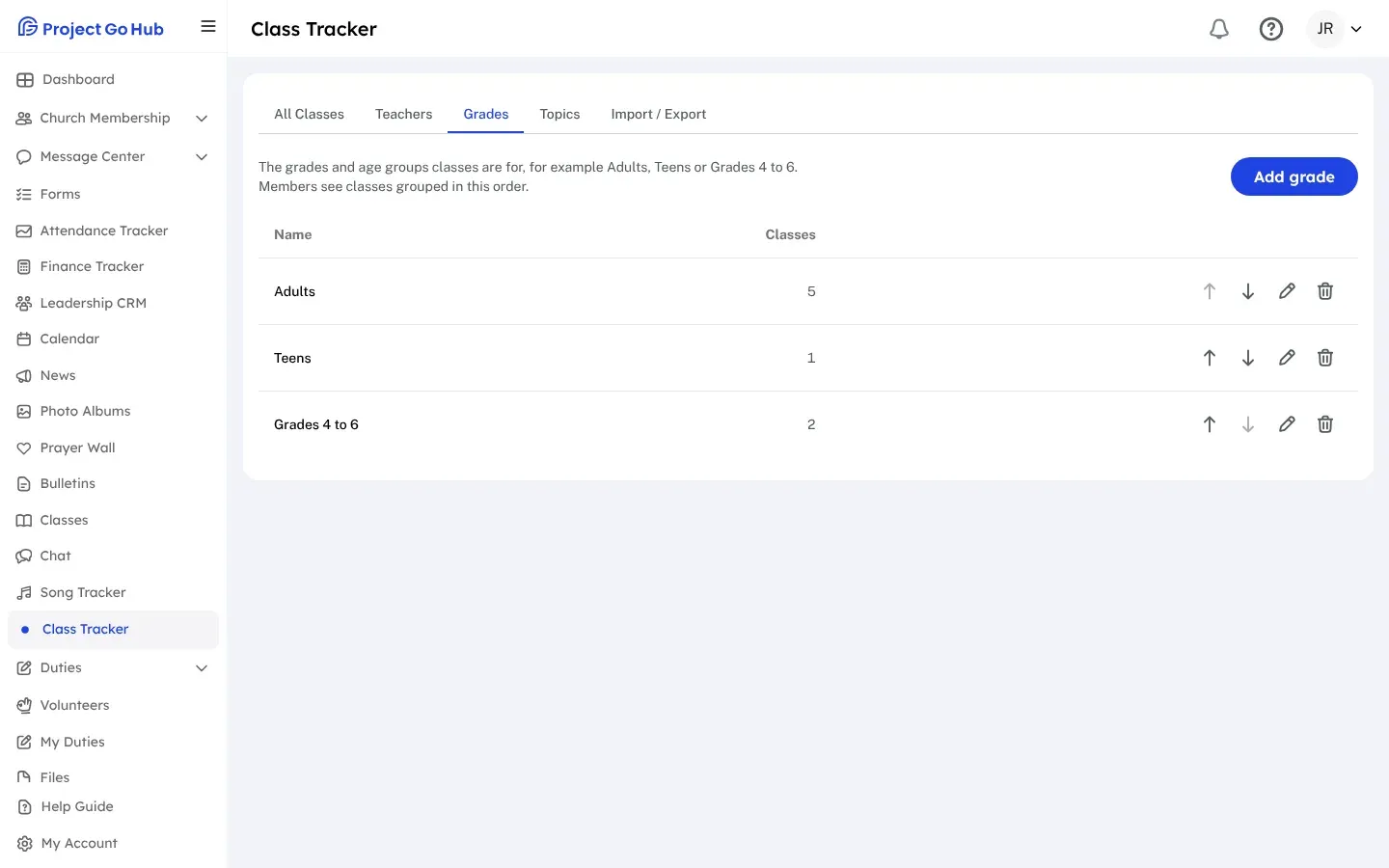
A grade is the age group a class is for, such as Adults, Teens or Grades 4 to 6.
- Click the Grades tab.
- Click Add grade.
- Type the name in Grade name. It can be up to 60 characters.
- Click Save grade.
Use the up and down arrows to put the grades in order. Members see their classes grouped in this order.
Click the pencil to rename a grade. Click the trash can to delete it.
Add a topic
Section titled “Add a topic”A topic is a subject you tag a class with, such as Gospels or Prayer.
- Click the Topics tab.
- Click Add topic.
- Type the name in Topic name. It can be up to 60 characters.
- Click Save topic.
Click the pencil to rename a topic. Click the trash can to delete it.
Good to know
Section titled “Good to know”- You cannot delete a grade or topic that classes use. The window says how many classes use it. Change those classes first, then delete it.
- A grade or topic name must be new. If one has the same name, you see “There is already a grade with that name.” or “There is already a topic with that name.”
- A member can be on the Teachers list only once. You see “That member is already on the Teachers list.”
- If Class Tracker is switched off for your church, the pages do not open. Members see “Classes are not turned on for this church.”
- The Classes column shows how many classes use each name.
Related tasks
Section titled “Related tasks”Still stuck?
Section titled “Still stuck?”Use the Contact support page, or email [email protected]. Tell us your church name and what you tried.
Was this page helpful?
We record searches and page feedback, with no names, emails or IP addresses, to improve these articles.