
Log a contact with a member or visitor
The Leadership CRM is a private log of the contact your leaders have with members and visitors. Log each call, visit or email, so the next leader can see what was said.
Only leaders with Leadership CRM access see the log. Members never see it, not even what is written about them.
Who can do this: You need Edit access to Leadership CRM. Your church’s Admins role has it. Every other role starts with No Access. See Give a leader access to the Leadership CRM.
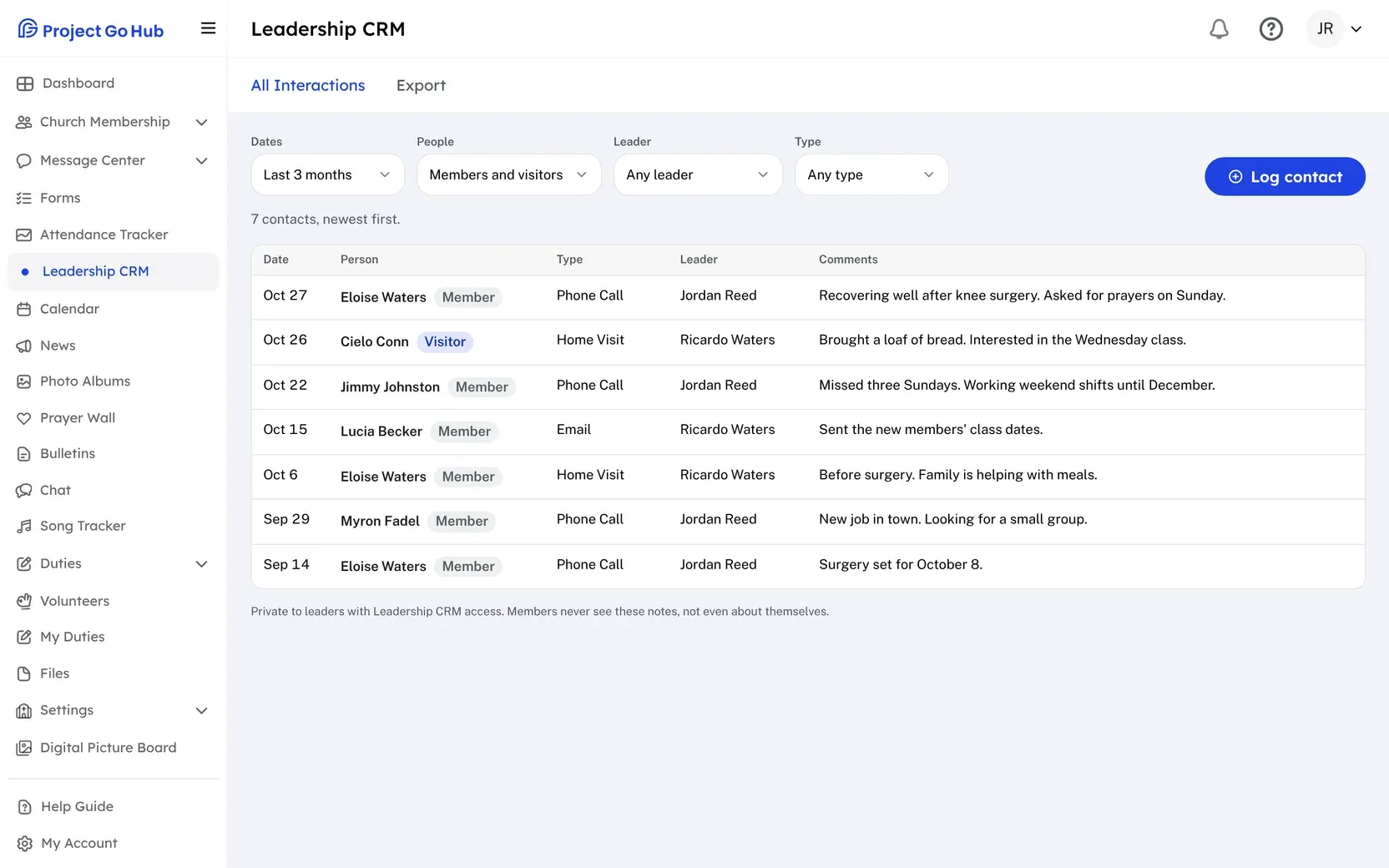
- On a computer, click Manage > Membership > Leadership CRM in the menu. On a phone, tap Menu at the bottom, then go to Manage > Membership > Leadership CRM. All Interactions opens.
- Click Log contact.
- In Person, type a name. Pick the member or visitor from the list.
- Check the Date. It starts at today. You cannot pick a day after today.
- In Type, type what kind of contact it was, or click a type under the box. The types start as Phone Call, Home Visit and Email. Types your church used before show there too.
- Check the Leader. It starts as you. To log a contact another leader made, type their name and pick them.
- In Comments, type what you talked about. This is optional.
- Click Save.
You see “Logged” with the type and the name. The contact is at the top of All Interactions.
Log a call from the Absences list
Section titled “Log a call from the Absences list”- Open Attendance Tracker, then the Absences tab.
- Each person shows a Last contact with its date, type and leader. A red No contact yet means nobody has logged a contact with them.
- Click Log call next to the person. The form opens with the person filled in and the type set to Phone Call.
- Type your comments and click Save.
The printed call list shows the last contact date in its Called column.
Log a contact from a member or visitor page
Section titled “Log a contact from a member or visitor page”The member’s page in Attendance Tracker (Per Member) and the visitor’s record in Visitors have a Contact history card. It shows the last 3 contacts. Click Log contact on the card to log one for that person.
Find a contact
Section titled “Find a contact”All Interactions lists every contact, newest first. On a phone, each contact is a card. Use the filters at the top:
- Dates: Last 30 days, Last 3 months, Last 12 months or All dates. It starts at Last 3 months.
- People: Members and visitors, Members or Visitors.
- Leader: the leader who made the contact.
- Type: the kind of contact.
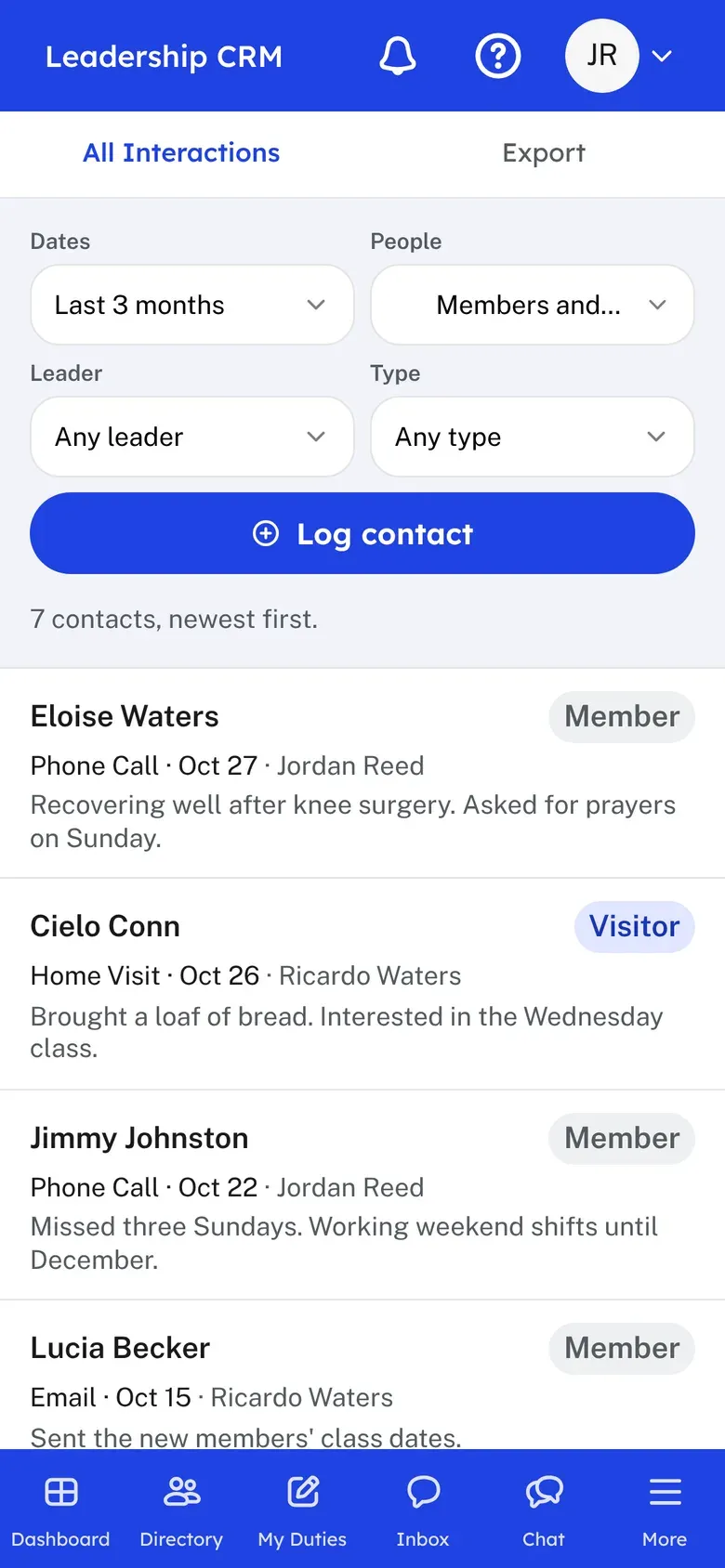
If there are more than 25 contacts, use Newer and Older at the bottom. Click a person’s name to see all of their history. See See a person’s contact history.
If it does not work
Section titled “If it does not work”- Save stays gray: Pick a person, a date, a type and a leader.
- “Nothing logged for these choices yet. Log a call, a visit or an email with Log contact.”: No contact matches the filters. Choose All dates, or set the other filters back to “Any”.
- You do not see Leadership CRM in the menu: Your role does not have Edit access to Leadership CRM, or your church has turned it off. If it is off, you see “The Leadership CRM is switched off for this church.” Ask your church admin.
Still stuck?
Section titled “Still stuck?”Use the Contact support page, or email [email protected]. Tell us your church name and what you tried.
Was this page helpful?
We record searches and page feedback, with no names, emails or IP addresses, to improve these articles.