
Write a message for approval
Do this when you want to write an email to other members or to a group. The office reads it first and then sends it or turns it down.
Who can do this: Your role needs Edit access to Inbox, and your church must have turned on member messages. If you do not see My Messages, ask your church admin.
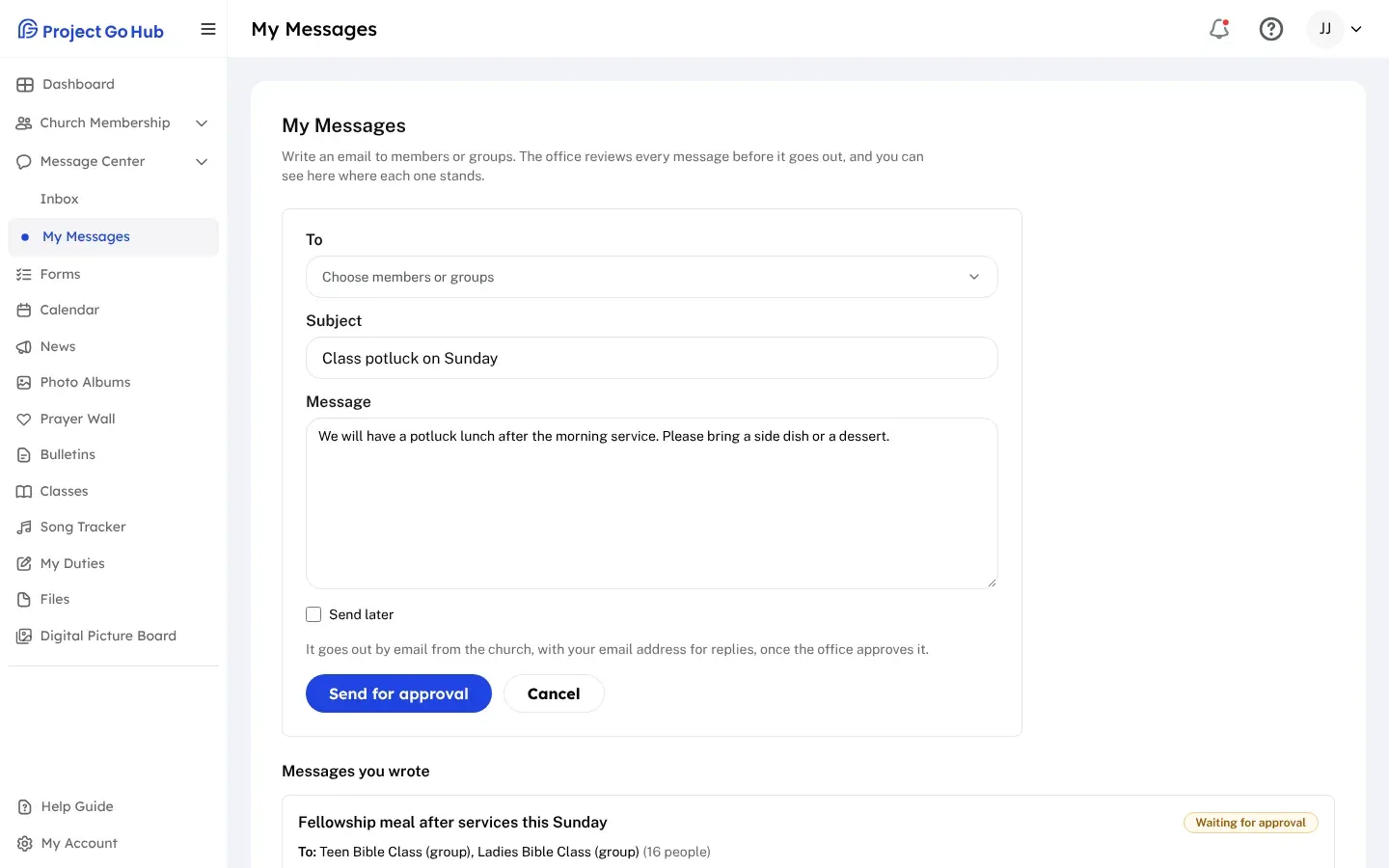
- Open My Messages. On a computer, click My Messages in the menu, below Inbox. On a phone, tap Menu at the bottom, then My Messages.
- Click Write a message.
- Click To and choose the members or groups. You can choose more than one.
- Type a Subject. It can have up to 200 characters.
- Type your Message. It can have up to 10,000 characters.
- To send it later, check Send later. Then choose a Day and a Time. Times are every 20 minutes, in your church’s time zone, which is shown under the fields.
- Click Send for approval.
You see “Sent for approval.” The message shows in Messages you wrote with the label Waiting for approval.
What happens next
Section titled “What happens next”- The office approves your message, or turns it down. You get a notification in the bell at the top of the page either way.
- If it is approved, it goes out by email from the church. The people who get it can reply to your email address.
- If you chose Send later, it goes out at that time. If the office approves it after that time, it goes out when it is approved.
- To see where it stands, or to take it back, see Check or withdraw a message you wrote.
Good to know
Section titled “Good to know”- You must choose at least one member or group. If you do not, you see “Choose who it goes to.”
- You can write up to 5 messages in 24 hours. After that you see “You can write up to 5 messages a day”.
- The send time must be later than now and within the next year.
- Your message is plain text. You cannot add pictures, files or formatting.
- The office can change your subject and message before it sends it.
Still stuck?
Section titled “Still stuck?”Use the Contact support page, or email [email protected]. Tell us your church name and what you tried.
Was this page helpful?
We record searches and page feedback, with no names, emails or IP addresses, to improve these articles.