
Add or rename an interest
Do this when the list is missing something your church needs, such as “Livestream camera”, or a name should read differently.
Who can do this: Your role needs Edit access to Member Interests.
Your church starts with a list of 397 interests in 18 groups, written for churches of Christ. It is copied to your church the first time anyone opens it. Changes you make are only for your church.
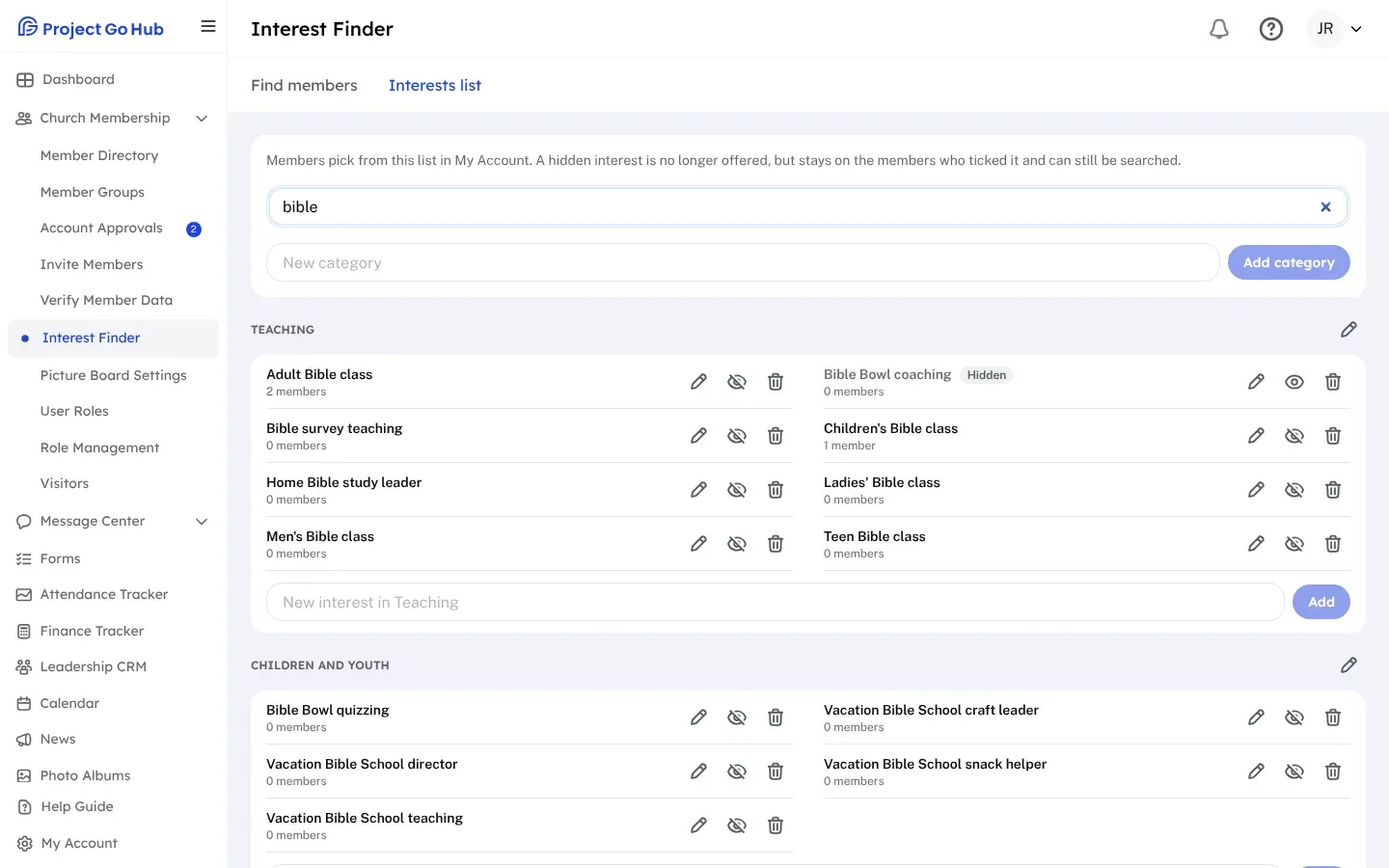
- In the menu, under Manage, open Membership, then click Interest Finder. On a phone, tap Menu at the bottom, then go to Manage > Membership > Interest Finder.
- Click the Interests list tab.
Add an interest
Section titled “Add an interest”- Find the group, such as Technology and media. Use the search box to jump to it.
- At the bottom of the group, click the box New interest in and the group name. Type the name.
- Click Add, or press Enter. You see the name and “added.”
Add a group
Section titled “Add a group”- At the top of the page, click the box New category. Type the name.
- Click Add category.
Change a name
Section titled “Change a name”- Click the pencil next to the interest or the group name.
- Change the name, then click Save. You see “Interest renamed” or “Category renamed”. To stop, click Cancel.
Good to know
Section titled “Good to know”- An interest name can have up to 80 characters. A group name can have up to 60.
- Names must be different. If you repeat one, you see “The list already has an interest with that name.” or “The list already has a category with that name.”
- Renaming an interest keeps it ticked for the members who picked it.
- A new interest is shown to members at once. They see it the next time they open My Account, then Interests.
- To take an interest off the list, see Hide or delete an interest.
Still stuck?
Section titled “Still stuck?”Use the Contact support page, or email [email protected]. Tell us your church name and what you tried.
Was this page helpful?
We record searches and page feedback, with no names, emails or IP addresses, to improve these articles.