
Turn on the Daily Email
Do this when you want your church to get the day’s new announcements by email, without writing a message each day.
Who can do this: Your role needs Edit access to Message Manager. Your church also needs a time zone. See Set the church time zone.
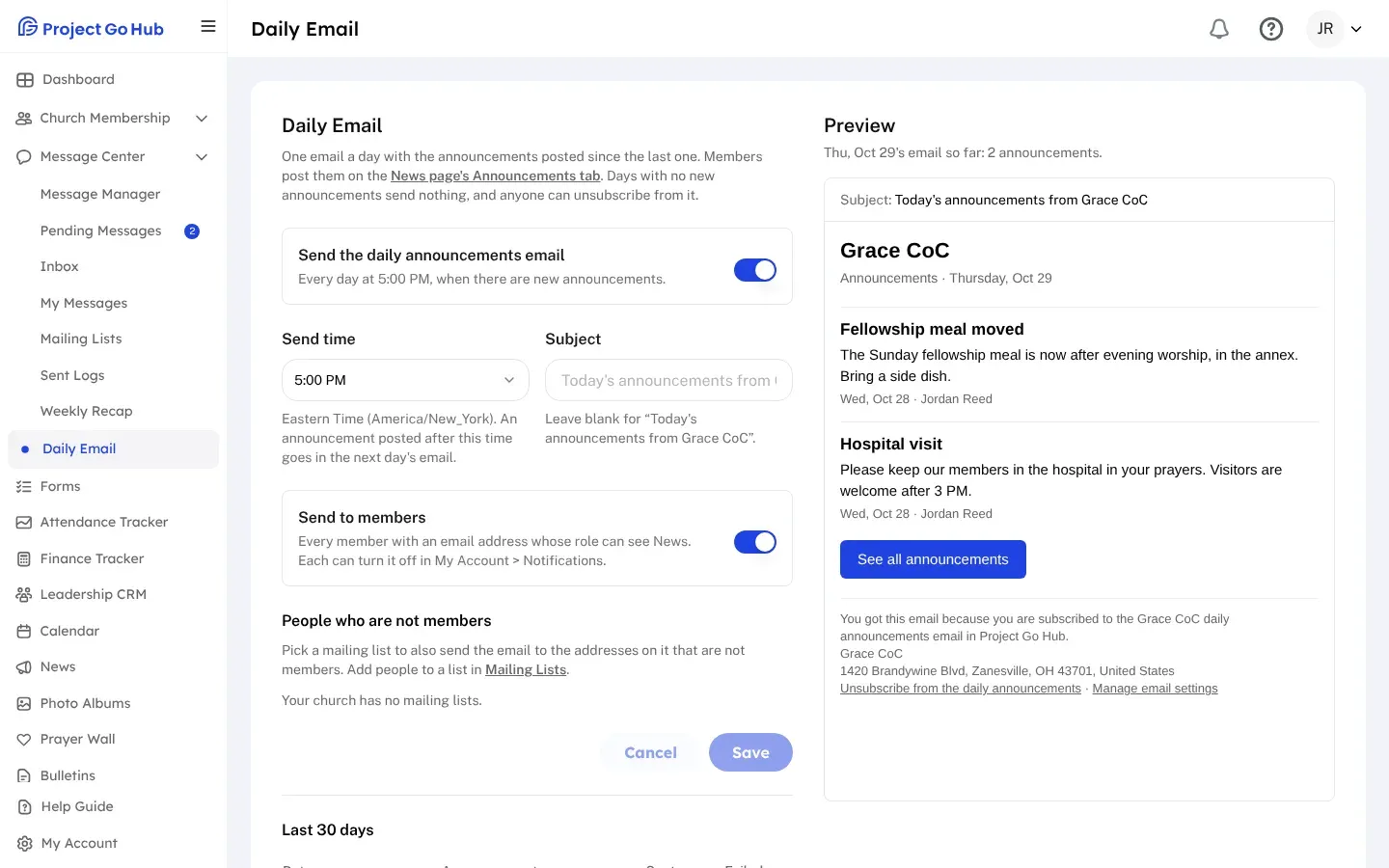
- Open Daily Email. On a computer, click Manage > Communication > Daily Email in the menu. On a phone, tap Menu at the bottom, then go to Manage > Communication > Daily Email.
- Click the switch Send the daily announcements email.
- Click Save.
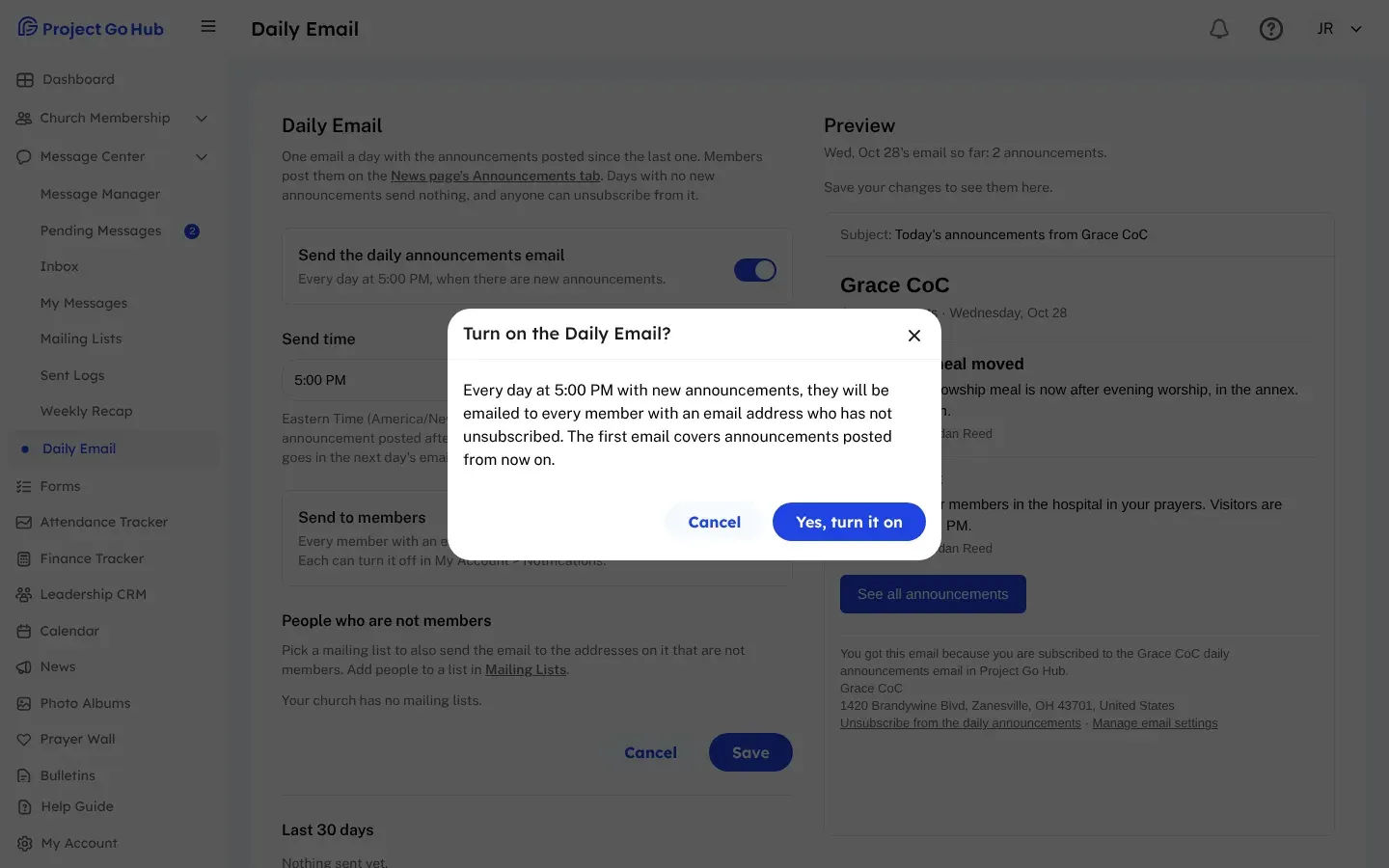
- A window asks Turn on the Daily Email? Read it, then click Yes, turn it on.
You see Daily Email saved, with the send time. The email now goes out every day at the send time. The Send time starts at 5:00 PM. To change it, see Change the Daily Email.
When it goes out
Section titled “When it goes out”- Once a day, every day of the week. There is no day to choose. You choose only the time of day.
- At the send time, on your church’s clock. It goes out about a minute after the time you pick. The time is in your church’s time zone, and you pick it in 15-minute steps.
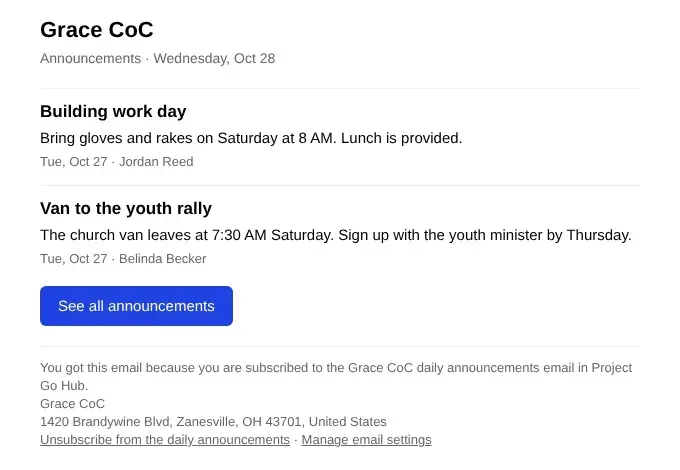
- Only with new announcements. The email holds the announcements posted since the last Daily Email. If nobody posted anything new, no email goes out that day, and Last 30 days shows Nothing to send for that day.
- A post after the send time goes in the next day’s email. An announcement posted at 5:30 PM, with a 5:00 PM send time, is in tomorrow’s email.
- The announcement’s Date does not matter. What counts is when it was posted.
- The first email starts from now. When you turn the Daily Email on, it covers only announcements posted from that moment on, and never what was posted while it was off. If you turn it on after today’s send time has passed, the first email goes tomorrow.
- Never twice. If the system restarts, nobody gets the same day’s email a second time.
Who gets it
Section titled “Who gets it”- Members who have an email address and whose role can view News, while Send to members is on.
- People who are not members, if you pick a mailing list. See Change the Daily Email.
- Nobody who unsubscribed from the Daily Email, or from all church emails, or whose address bounced.
Each member can turn it off for themselves. See Stop or restart the daily announcements email.
Good to know
Section titled “Good to know”- The Weekly Recap is a different email. It goes once a week, on a day you pick, and does not include announcements.
- To turn the Daily Email off, click the switch again and click Save. You see Daily Email saved and The Daily Email is off. No confirmation window shows.
- If your church has no time zone, you see a yellow note and the switch is off. Set the time zone, then come back.
- Turning it off and on again does not send the announcements posted while it was off.
If it does not work
Section titled “If it does not work”“Set the church’s time zone in Customization > Church Timezone before turning on the Daily Email.”: Your church has no time zone yet. See Set the church time zone.
Still stuck?
Section titled “Still stuck?”Use the Contact support page, or email [email protected]. Tell us your church name and what you tried.
Was this page helpful?
We record searches and page feedback, with no names, emails or IP addresses, to improve these articles.