
Check or withdraw a message you wrote
Do this when you sent a message for approval and want to know where it stands, or you changed your mind.
Who can do this: Your role needs Edit access to Inbox, and your church must have turned on member messages.
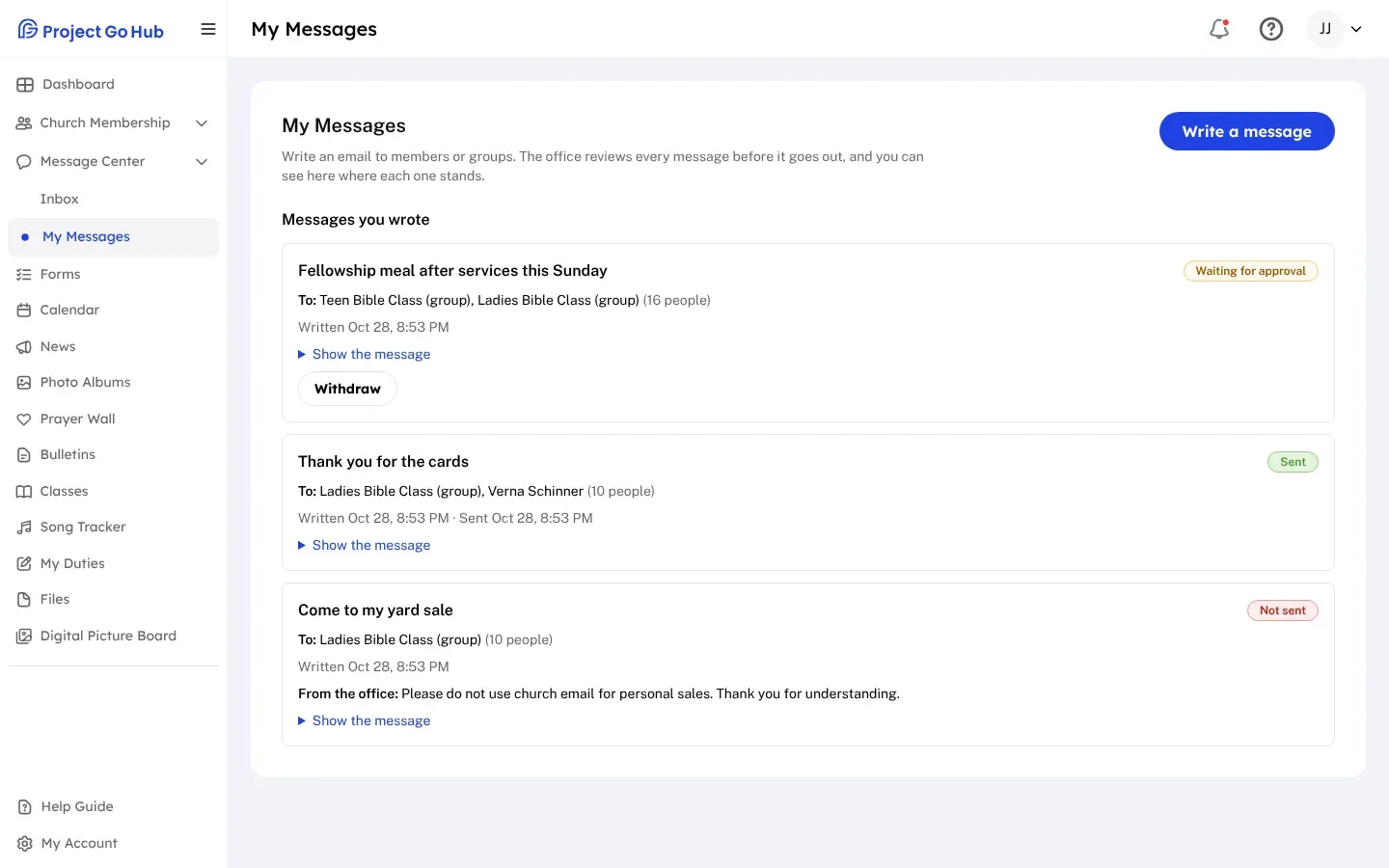
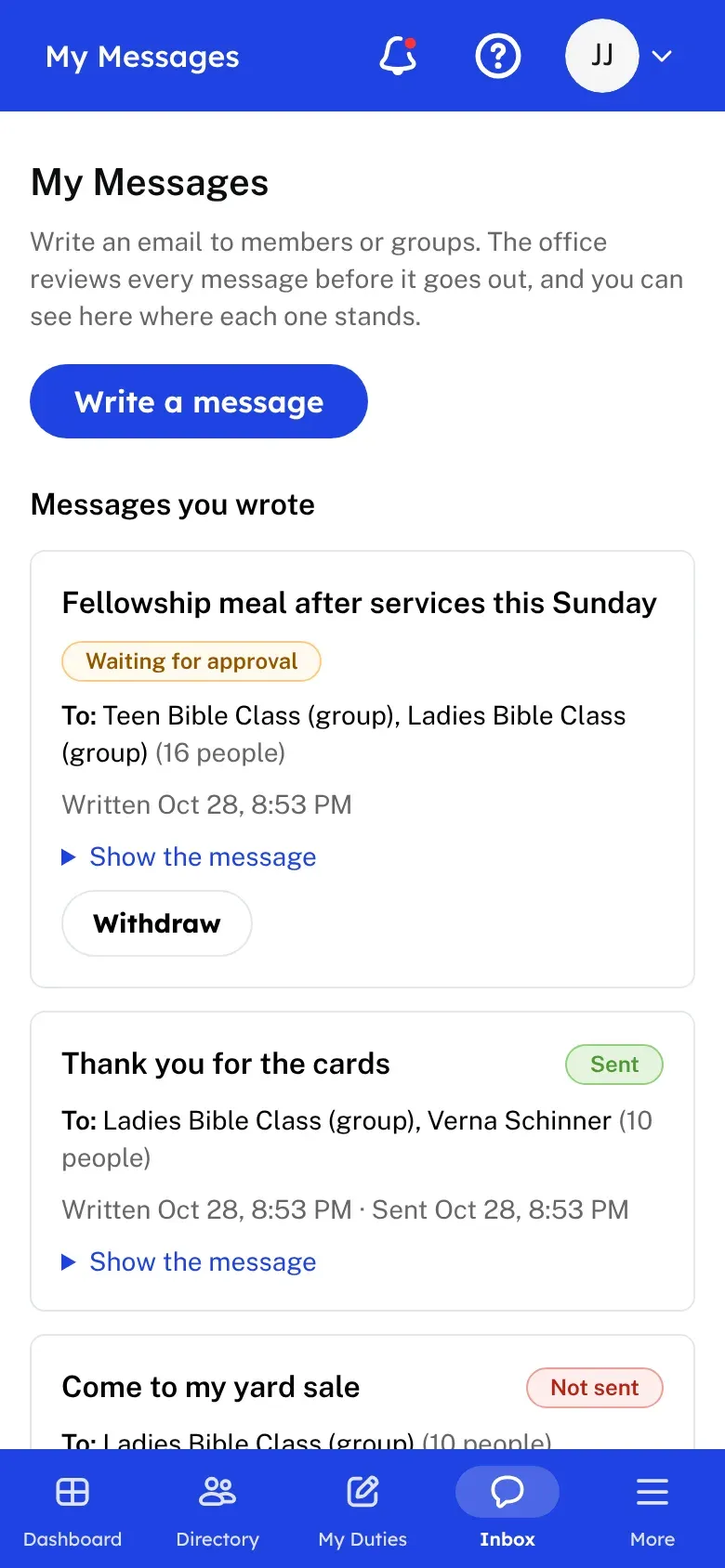
- Open My Messages. On a computer, click My Messages in the menu, below Inbox. On a phone, tap Menu at the bottom, then My Messages.
- Look under Messages you wrote. The newest message is at the top.
- Click Show the message to read what you wrote.
On a phone, the messages show one under the other.
What the labels mean
Section titled “What the labels mean”| Label | What it means |
|---|---|
| Waiting for approval | The office has not looked at it yet. You can still withdraw it. |
| Approved | The office approved it. It goes out at the time you chose. You can still withdraw it until it starts sending. |
| Sending | It is being sent now. |
| Sent | It was emailed. The date and time are shown. |
| Not sent | The office turned it down. If the office gave a reason, you see it after From the office. |
Withdraw a message
Section titled “Withdraw a message”You can take back a message while it is Waiting for approval, or Approved for a later time and not yet sending.
- Click Withdraw under the message.
- Click Withdraw again to confirm. Click Keep it to leave it as it is.
You see “Message withdrawn.” The message is not sent and leaves your list.
Good to know
Section titled “Good to know”- If the office turns your message down, you get a notification in the bell at the top of the page.
- Once a message starts sending, you cannot withdraw it. You see “Only a message that has not started sending can be withdrawn”.
Still stuck?
Section titled “Still stuck?”Use the Contact support page, or email [email protected]. Tell us your church name and what you tried.
Was this page helpful?
We record searches and page feedback, with no names, emails or IP addresses, to improve these articles.