
Void a record
Do this when a record was a mistake, for example a gift entered twice, and you want the list to still show it.
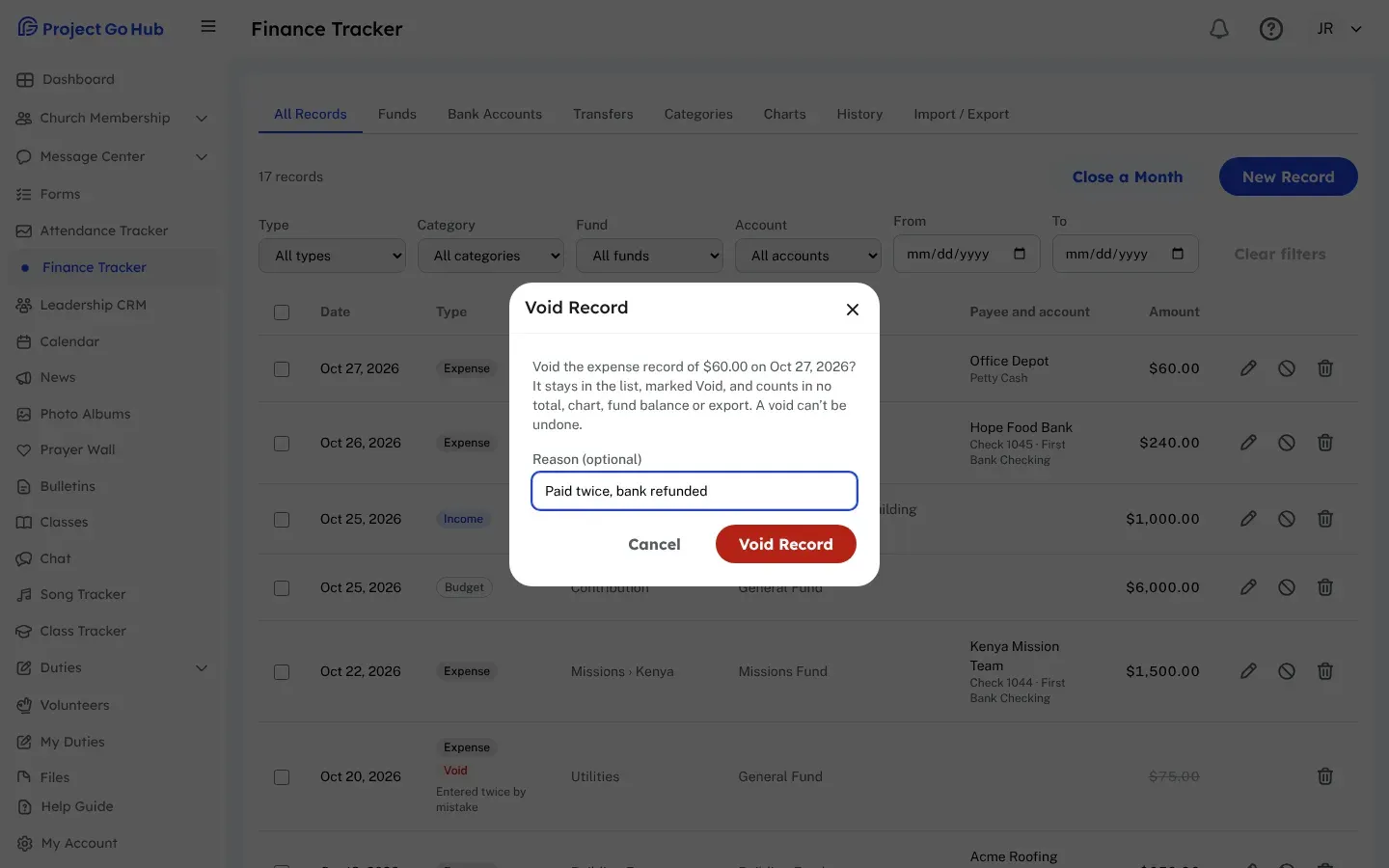
A void record stays in the list, with a red Void mark and its amount crossed out. It counts in no total, chart, fund balance or export.
Who can do this: You need Edit access to Finance Tracker. If you do not see Finance Tracker in the menu, ask your church admin.
- Open the Finance Tracker. On a computer, click Manage > Attendance & Records > Finance Tracker in the menu. On a phone, tap Menu at the bottom, then go to Manage > Attendance & Records > Finance Tracker.
- On the All Records tab, find the record. To find it faster, see Find records.
- Click the circle with a line through it, between the pencil and the trash can.
- If you want, type a Reason (optional), for example Check bounced. It can have up to 200 characters.
- Click Void Record.
You see Record voided. The row stays in the list. The reason shows under the type. On a phone, it shows in the card as Void: and the reason.
Good to know
Section titled “Good to know”- A void cannot be undone. If you voided the wrong record, add the record again.
- A record made by finishing a deposit shows From a deposit and has no void button. Change it from its deposit on the Deposits tab.
- A void record cannot be changed. It has no pencil or void button.
- You can still delete a void record. See Change or delete a finance record.
- The History tab shows who voided the record, when, and the reason. See See the history of your finance records.
- A record in a closed month cannot be voided. See Close a month.
- A fund that has only void records still cannot be deleted.
Still stuck?
Section titled “Still stuck?”Use the Contact support page, or email [email protected]. Tell us your church name and what you tried.
Was this page helpful?
We record searches and page feedback, with no names, emails or IP addresses, to improve these articles.