
Hide or delete an interest
Do this when your church does not want members to pick an interest any more, or the interest was added by mistake.
Who can do this: Your role needs Edit access to Member Interests.
- In the menu, under Manage, open Membership, then click Interest Finder. On a phone, tap Menu at the bottom, then go to Manage > Membership > Interest Finder.
- Click the Interests list tab.
- Find the interest. Use the search box to narrow the list.
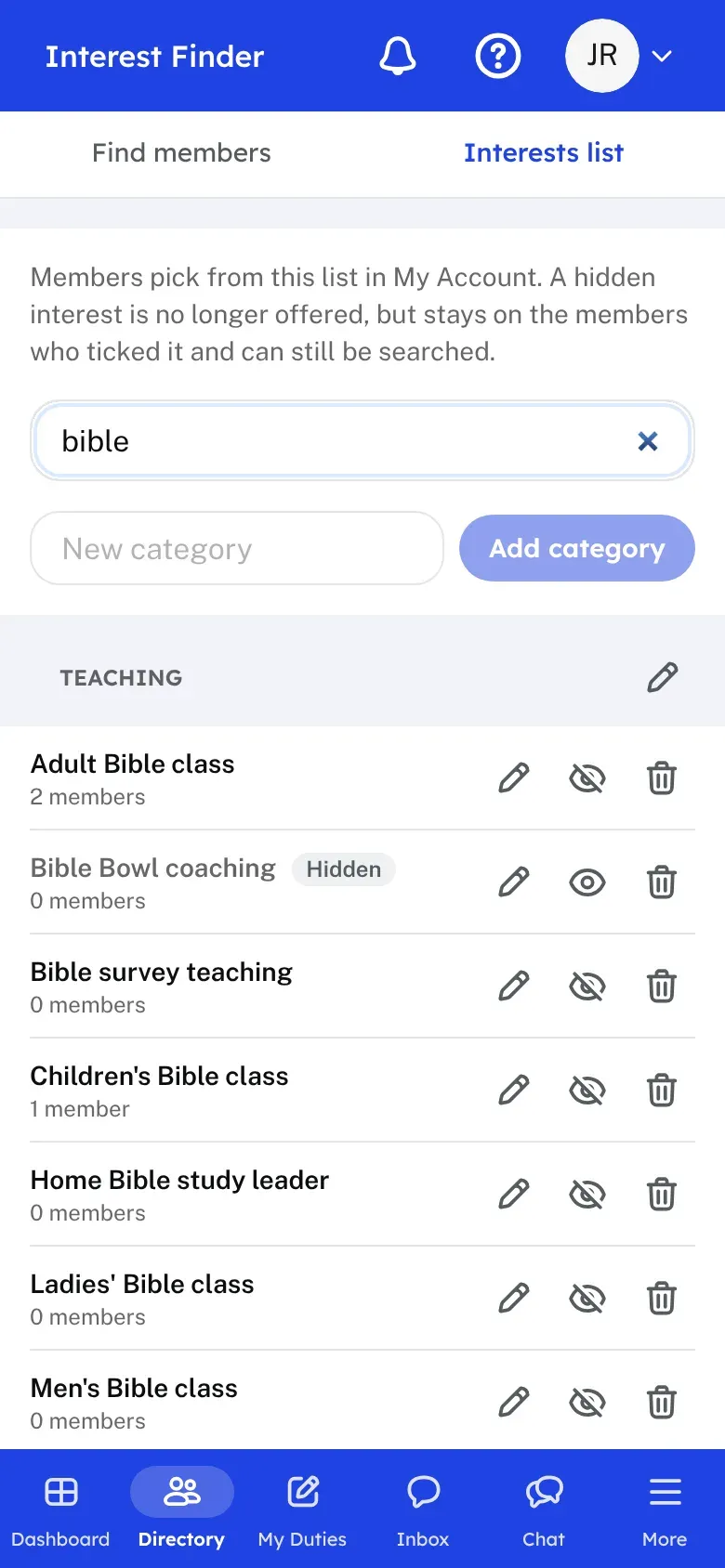
Each interest has three buttons, left to right:
- Pencil: rename it. See Add or rename an interest.
- Eye with a line through it: hide it. You see “
is hidden from members.” - Trash can: delete it.
Hide an interest
Section titled “Hide an interest”Click the eye with a line. The interest turns grey and shows Hidden. Members no longer see it in My Account, then Interests.
To bring it back, click the eye. You see “
Delete an interest
Section titled “Delete an interest”- Click the trash can.
- A box asks Delete “
”? Confirm it.
If no member ticked it, you see “Interest deleted.” If a member ticked it, it is hidden instead, and you see “Someone has ticked this interest, so it was hidden instead of deleted.”
Delete a group
Section titled “Delete a group”A group has a trash can only when it has no interests in it, and when the search box is empty. Delete its interests first.
Good to know
Section titled “Good to know”- Next to each interest you see how many members ticked it, for example 2 members.
- A hidden interest stays ticked for the members who picked it. Leaders can still search for it, and it shows as hidden. See Find members by interest.
- Hiding is safer than deleting. You can bring a hidden interest back.
Still stuck?
Section titled “Still stuck?”Use the Contact support page, or email [email protected]. Tell us your church name and what you tried.
Was this page helpful?
We record searches and page feedback, with no names, emails or IP addresses, to improve these articles.