
Add an income, expense or budget record
The Finance Tracker is your church’s ledger, the book where you write down your church’s money. Each record is one amount on one day: money that came in (Income), money that went out (Expense), or a planned amount (Budget).
Who can do this: You need Edit access to Finance Tracker. Members cannot see it. If you do not see Finance Tracker in the menu, ask your church admin: it can also be switched off for your whole church.
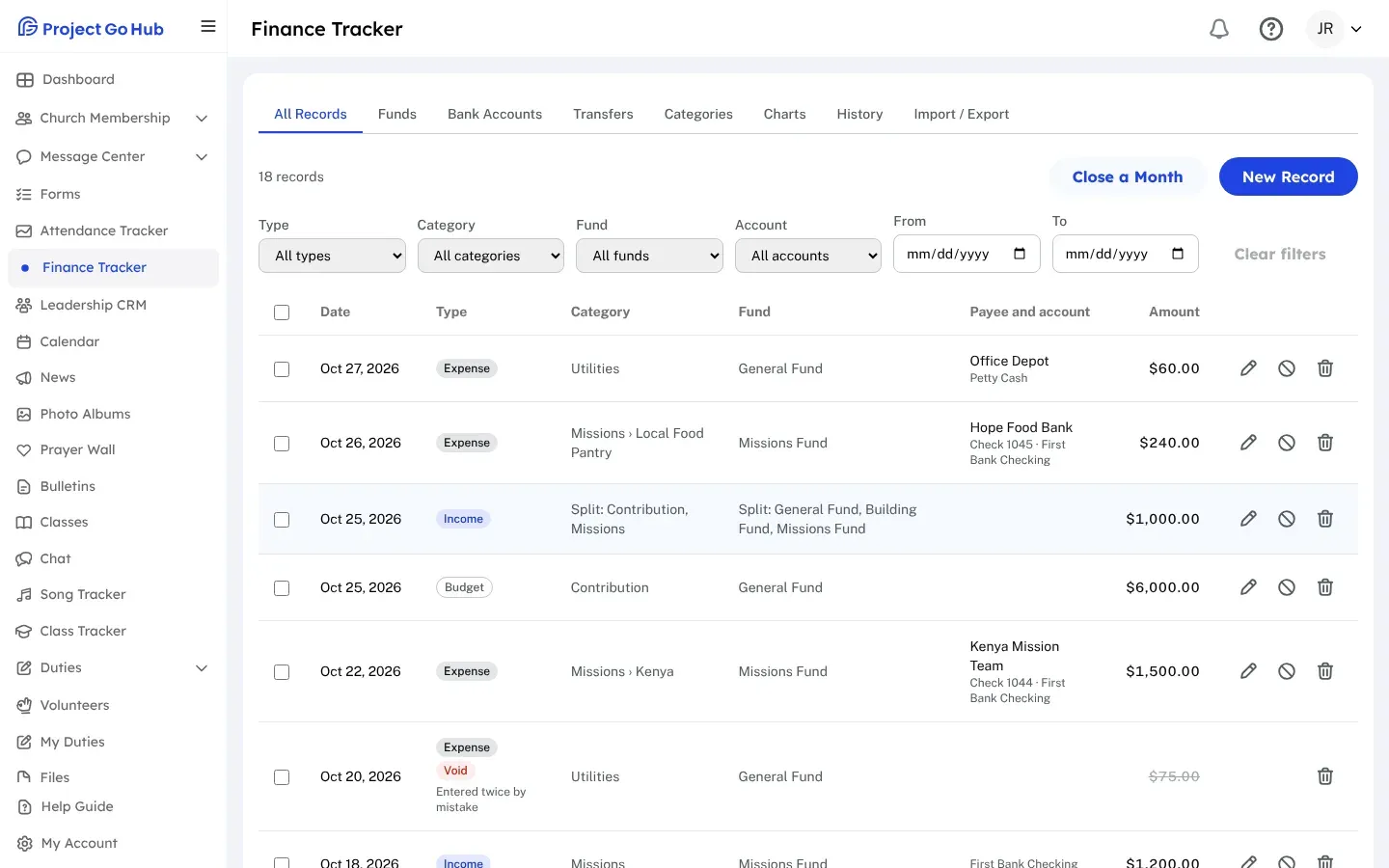
- Open the Finance Tracker. On a computer, click Manage > Attendance & Records > Finance Tracker in the menu. On a phone, tap Menu at the bottom, then go to Manage > Attendance & Records > Finance Tracker.
- On the All Records tab, click New Record.
- In Date, choose the day. It starts on today.
- In Type, choose Income, Expense or Budget. It starts on Income.
- In Amount, type the amount in dollars, for example 125.50.
- In Category, choose a category, or leave No category.
- In Fund, choose the fund the money belongs to, or leave General Fund.
- If you want, fill in the rest:
- Payee (optional): who it was paid to or received from. Names you used before are offered as you type.
- Bank account: the account the money went into or came out of, or leave No account.
- Check number (optional): the number of the check.
- Click Save Record.
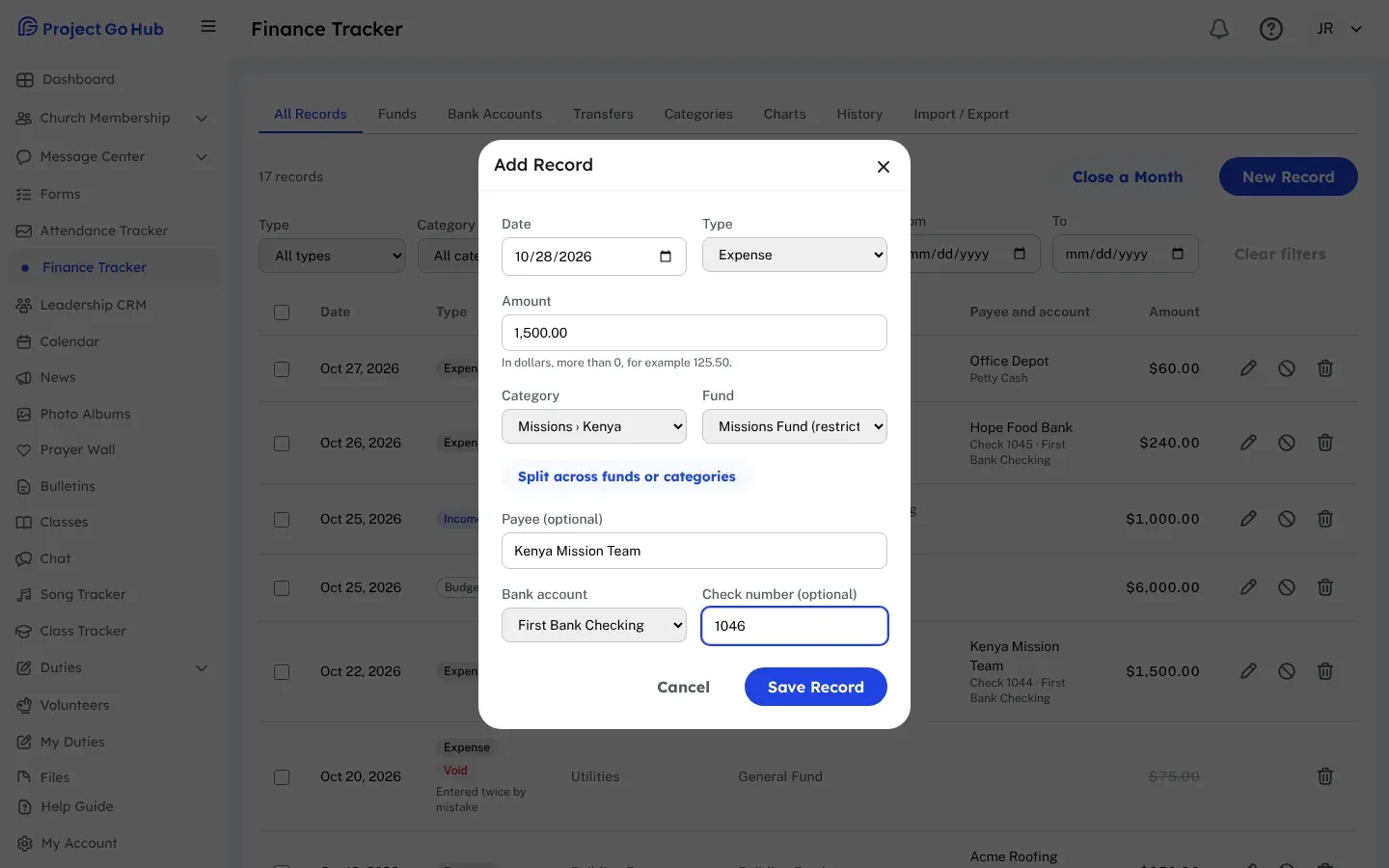
The record shows in the list on All Records. The Payee and account column shows the payee, and under it the check number and the account, for example Check 1044 · First Bank Checking.
Good to know
Section titled “Good to know”- The amount must be more than 0, with at most two numbers after the dot. You can type 1,250.00 or $1,250.00. Save Record stays off until the amount is right. If the amount is not right when you leave the box, the box turns red and a message under it says: “Enter an amount more than 0 in dollars and cents, like 125.50.” The same happens in a split line’s amount box.
- A budget is a record too, with the type Budget. The Charts tab shows it beside income and expenses.
- A record with no fund chosen is in the General Fund, which every church has. To make more funds, see Set up funds.
- To put one amount in more than one fund or category, see Split a record across funds or categories.
- If the date is in a month you closed, the record is refused. See Close a month.
- A sub-category shows with its parent’s name, for example Missions › Kenya.
- A new payee name is saved, so it is offered the next time. A payee can have up to 100 characters.
- A check number can have up to 20 characters. Two records can have the same check number.
- A budget record has no Bank account box, because a budget is a plan, not money.
- To add your bank accounts first, see Set up bank accounts.
- To add categories first, see Add, rename or delete a category.
- Online gifts are not added to the ledger. You see their total beside it. See Find records.
- To add many records at once, see Import or export finance records.
Still stuck?
Section titled “Still stuck?”Use the Contact support page, or email [email protected]. Tell us your church name and what you tried.
Was this page helpful?
We record searches and page feedback, with no names, emails or IP addresses, to improve these articles.