
Find records
Do this when you need to look up records, for example all the expenses for utilities last month.
Who can do this: You need Edit access to Finance Tracker. If you do not see Finance Tracker in the menu, ask your church admin.
- Open the Finance Tracker. On a computer, click Manage > Attendance & Records > Finance Tracker in the menu. On a phone, tap Menu at the bottom, then go to Manage > Attendance & Records > Finance Tracker.
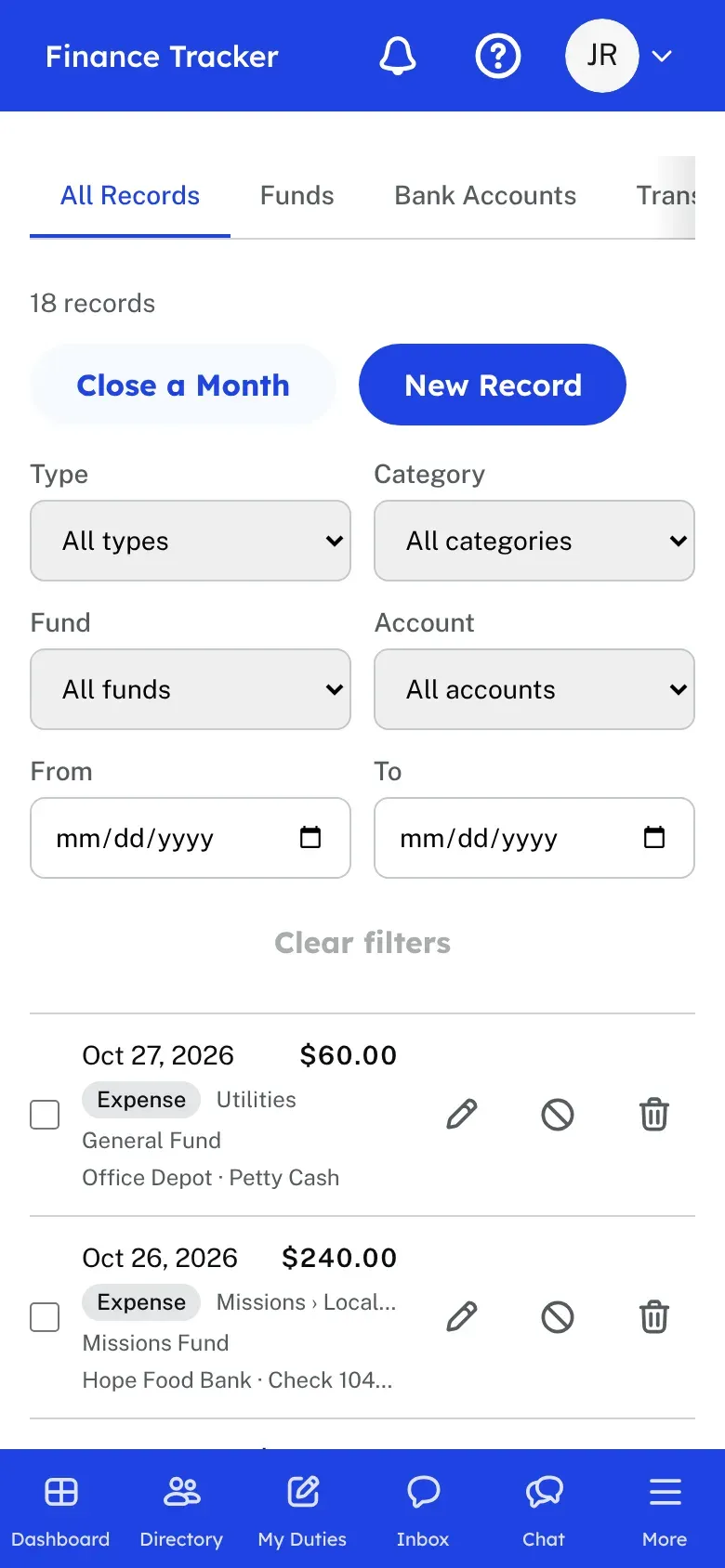
- On the All Records tab, use the filters above the list:
- Type: Income, Expense or Budget.
- Category: one category, or No category for records that have none. A category with sub-categories also shows the records in its sub-categories. A sub-category shows as, for example, Missions › Kenya.
- Fund: one fund, such as General Fund or Building Fund.
- Account: one bank account, or No account for records that have none.
- From and To: the first day and the last day.
- Read the list. It shows the Date, Type, Category, Fund, Payee and account, and Amount of each record, newest first.
To show all records again, click Clear filters.
Online giving for the same dates
Section titled “Online giving for the same dates”When you choose both From and To, a box above the list shows Online giving in these dates. It is the total of the online gifts in Contributions Manager for those days.
This total is not counted in the ledger. Online gifts are never copied into it. To see each gift, open Contributions Manager.
Good to know
Section titled “Good to know”- Transfers between bank accounts or funds are not on All Records. They are on the Transfers tab. See Move money between accounts or funds.
- The number above the filters tells you how many records match.
- The list shows 50 records a page. Click Next and Previous to move between pages.
- A split record shows Split: and the names of its categories or funds. It matches a Category or Fund filter if any one of its lines does. See Split a record across funds or categories.
- A void record stays in the list, with a red Void mark and its amount crossed out. See Void a record.
- A small lock instead of the buttons means the record is in a closed month. See Close a month.
- Payee and account shows the payee, and under it the check number and the bank account, for example Check 1042 · First Bank Checking.
- On a phone, each record is a card with its date, amount, type, category and fund, and a line with its payee, check number and account. If the record is void, the card shows its reason where the fund would be.
Still stuck?
Section titled “Still stuck?”Use the Contact support page, or email [email protected]. Tell us your church name and what you tried.
Was this page helpful?
We record searches and page feedback, with no names, emails or IP addresses, to improve these articles.