
Choose which cards members see on the Dashboard
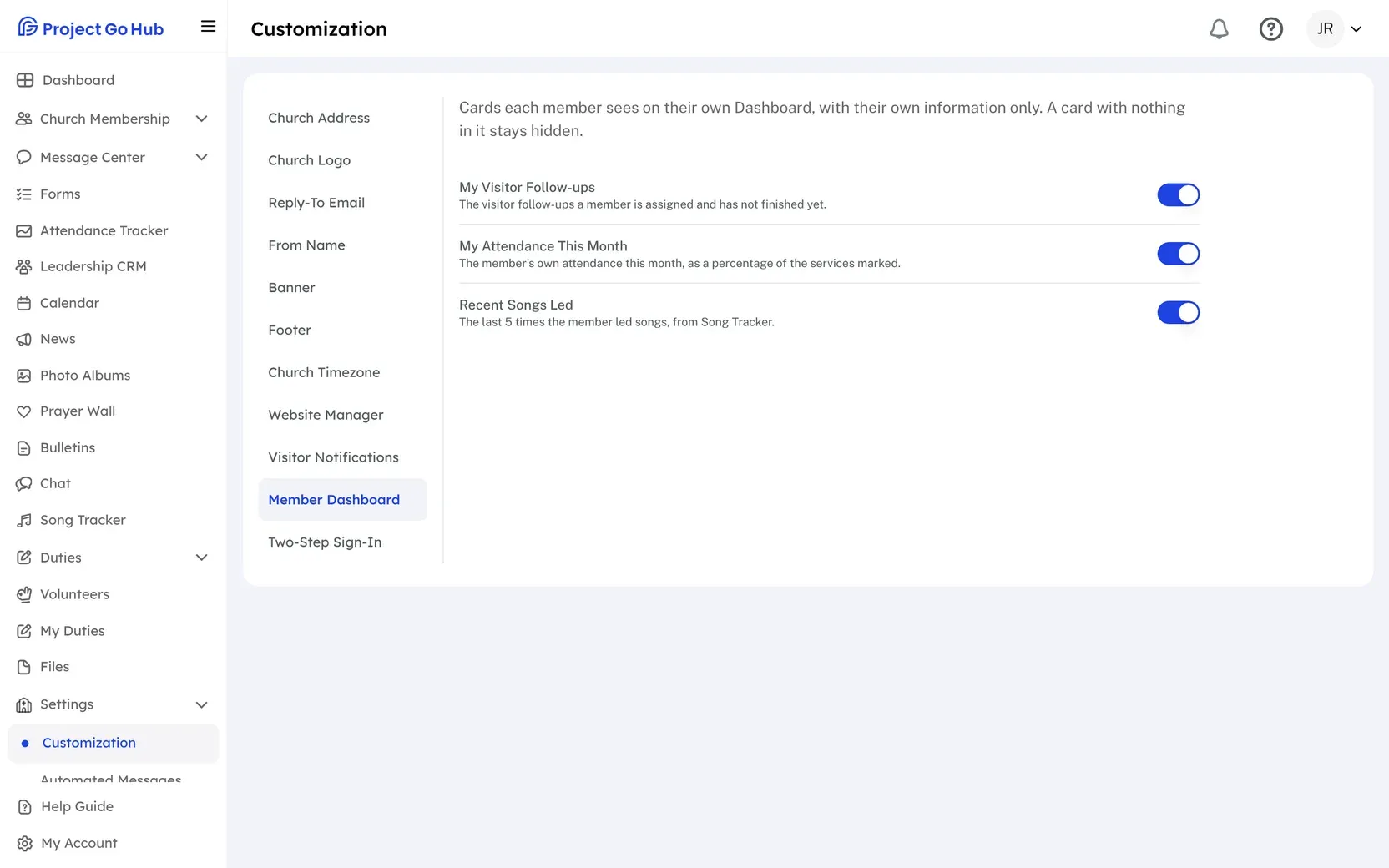
The Member Dashboard tab has a switch for each card on members’ Dashboards, including My Visitor Follow-ups, My Attendance This Month, Recent Songs Led and What’s New. All are on at first except What’s New. Turn off any card your church does not want to show.
Who can do this: You need Edit access to Customization. With View access, you can see the switches but not change them.
- In the menu, under Manage, open Settings, then click Customization. On a phone, tap Menu at the bottom, then go to Manage > Settings > Customization.
- Click Member Dashboard.
- Turn a card’s switch on or off.
Each switch saves at once. You see, for example, “Recent Songs Led hidden on members’ Dashboards.”
What each card shows
Section titled “What each card shows”- My Visitor Follow-ups: the visitor follow-ups a member is assigned and has not finished yet.
- My Attendance This Month: the member’s own attendance this month, as a percentage of the services marked.
- Recent Songs Led: the last 5 times the member led songs, from Song Tracker.
- What’s New: the church’s 5 newest sermons, bulletins, News posts, photo albums, events and prayer requests, with a page that lists them all. It is off at first, so turn it on to use it. Each member sees only what they can already open. See See what’s new.
Good to know
Section titled “Good to know”- Each member sees only their own information.
- A card with nothing in it stays hidden. A member who has no follow-ups, no attendance marked this month, and has not led songs sees none of these cards.
- My Attendance This Month shows only for roles that can view Attendance Tracker. Recent Songs Led shows only for roles that can view Song Tracker.
- Recent Finances is also on this list, and it is on at first. It shows the church’s income, expenses and net for the last 30 days, but only to roles with View or Edit access to Finance Tracker. Turn its switch off if your church does not want the totals on the Dashboard. See See income and expenses over time.
- To see what members see, read Use the Dashboard.
Still stuck?
Section titled “Still stuck?”Use the Contact support page, or email [email protected]. Tell us your church name and what you tried.
Was this page helpful?
We record searches and page feedback, with no names, emails or IP addresses, to improve these articles.