
Approve or deny a member's message
Do this when a member has written a message and it is waiting for you. Nothing is sent until you approve it.
Who can do this: You need Edit access to Message Manager. Leaders of a member group cannot use this page unless their role has that access.
- Open Pending Messages. On a computer, click Manage > Communication > Pending Messages in the menu. On a phone, tap Menu at the bottom, then go to Manage > Communication > Pending Messages. A number beside the menu item shows how many messages are waiting.
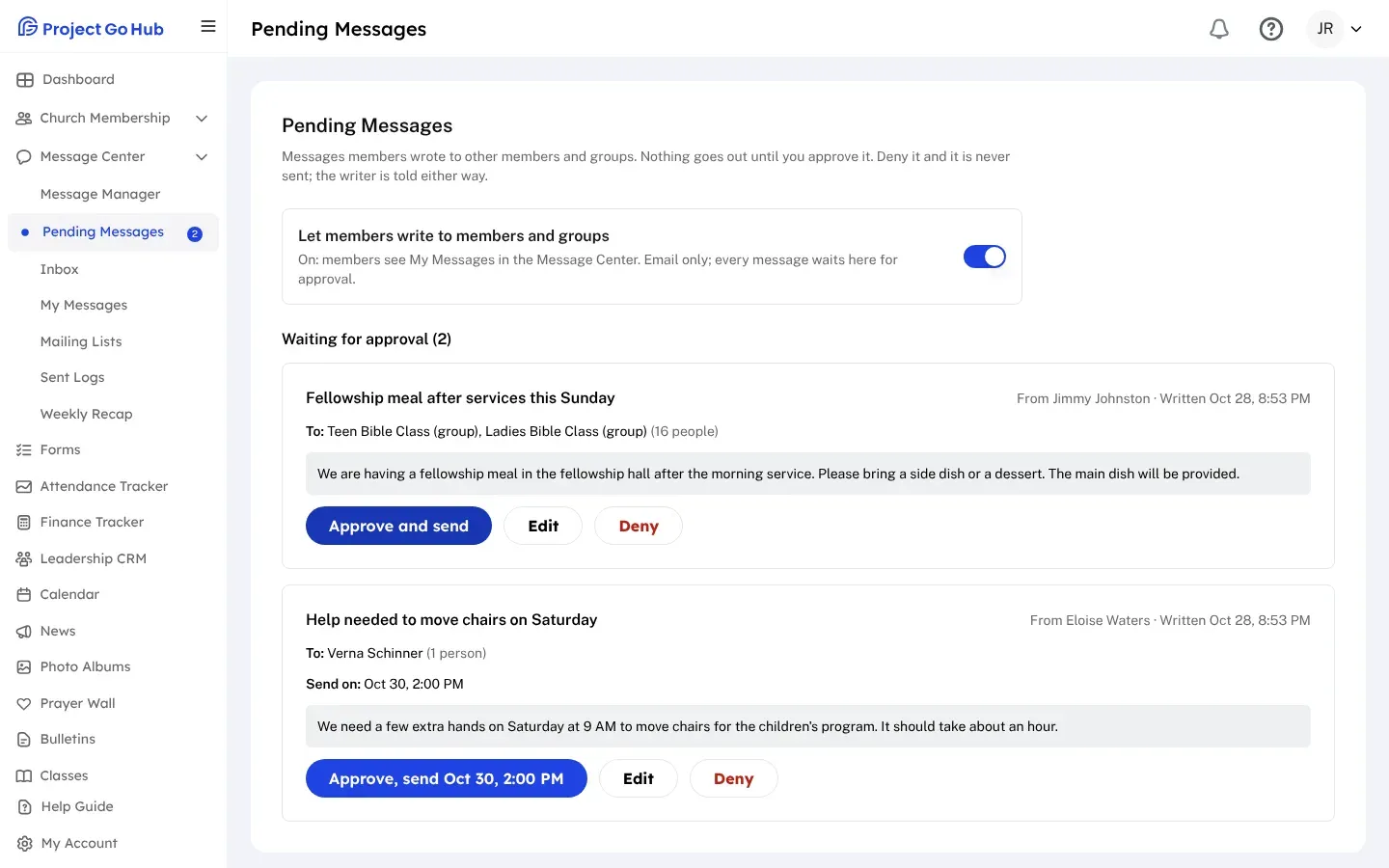
- Find the message under Waiting for approval. You see who wrote it, who it goes to, how many people that is, and the text.
- Choose what to do.
Approve a message
Section titled “Approve a message”Click Approve and send. You see “Approved and sent.” The email goes out at once, and the member is told it was sent.
If the member chose a later time, the button says Approve, send and the time. You see “Approved. It goes out at the time the writer chose.” The member is told it was approved, and it goes out at that time. If that time has already passed, the message says “(passed: it goes out when approved)” and goes out right away.
Change a message first
Section titled “Change a message first”- Click Edit.
- Change the Subject or the Message.
- Click Save and send. Click Cancel edit to stop without sending.
The email goes out with your changes.
Deny a message
Section titled “Deny a message”- Click Deny.
- If you want, type a Reason for the writer (optional). It can have up to 500 characters.
- Click Deny.
You see “Denied. It will not be sent.” Nothing is emailed. The member gets a notification, and sees the message as Not sent with your reason.
Good to know
Section titled “Good to know”- The email goes out as the member’s message, and replies go to the member.
- A message that is not yet approved does not show in Message Manager. It stays on Pending Messages.
- If two people open the same message, the second one sees “This message is no longer waiting for approval.” Reload the page.
- If a message is large and still sending, you see “Approved. It is still sending and will show as Sent when it is done.”
- If the email could not be sent at all, you see the reason (for example, “Not sent: … It is still waiting for approval.”), and the message stays on the page so you can try again.
- If the writer has left the church, you cannot approve the message. Deny it instead. If it reached some people before it stopped, the rest are tried again within 20 minutes, and nobody gets it twice.
- To turn the whole feature on or off, see Let members write messages for approval.
Still stuck?
Section titled “Still stuck?”Use the Contact support page, or email [email protected]. Tell us your church name and what you tried.
Was this page helpful?
We record searches and page feedback, with no names, emails or IP addresses, to improve these articles.