
Check your details for your church
Your church may email you “Please check your details for” and your church’s name. It asks if your family’s address, phone numbers and email are still right. You do not need to log in to answer.
Who can do this: anyone who gets the email.
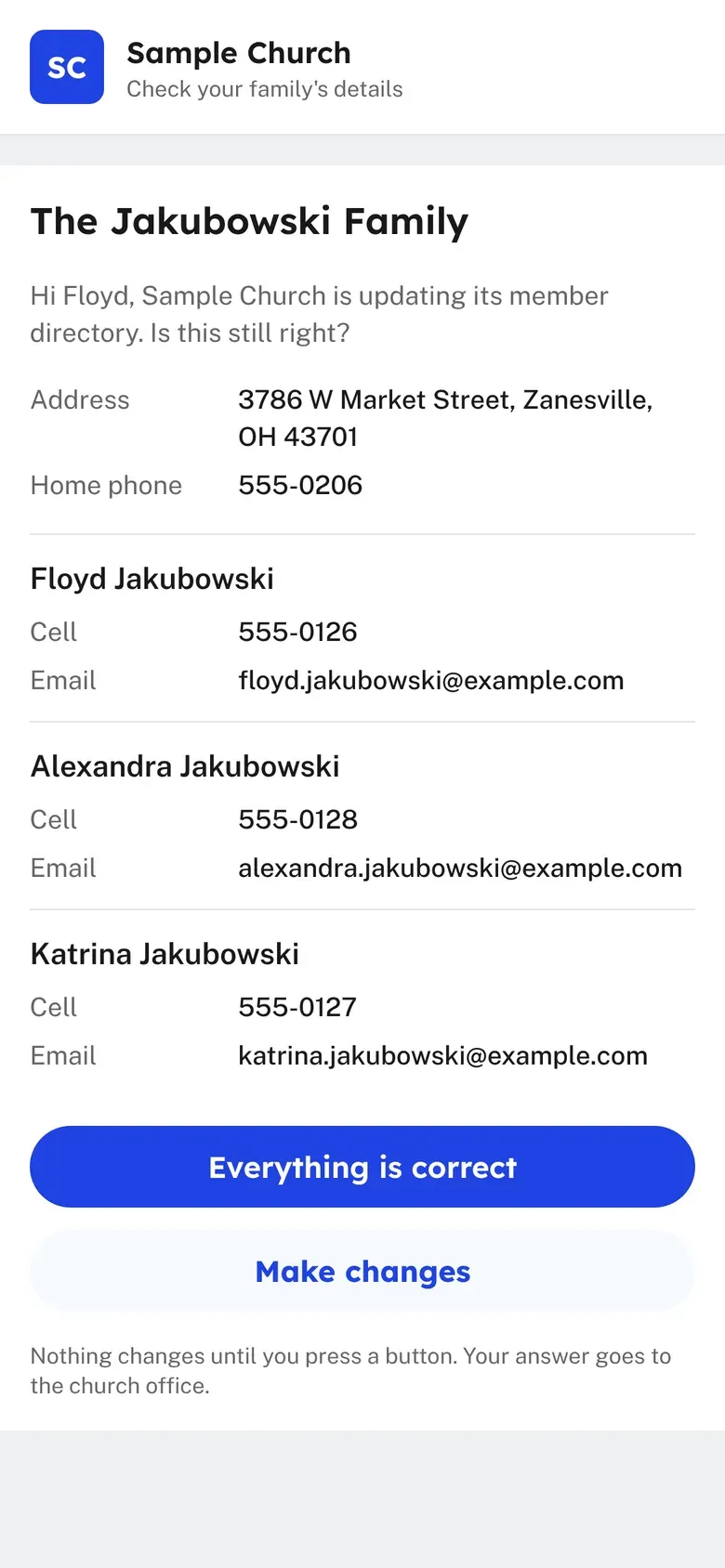
- Open the email and click Check my details. A page opens with your details.
- Read them.
- If everything is right, click Everything is correct. You are done.
- If something is wrong, click Make changes.
- Change what is wrong: the address, the home phone, and each person’s cell phone and email.
- Click Save and confirm.
You see Thank you. Your church gets your answer.
Nothing changes until you press a button. Only the head of your family can change the family’s address. If you are not the family head and the address is wrong, tell the church office.
If you change an email
Section titled “If you change an email”The new email is not used until it is confirmed. Project Go Hub sends a link to the new email, and sometimes one to the current email too. The Thank you page tells you where the links went. The email address changes once the link (or both links) are opened, within 1 hour. If the link could not be sent, the page says so and the email address did not change. Open the page again later to try once more, or tell the church office.
Answer in My Account instead
Section titled “Answer in My Account instead”If you log in while your church is waiting for your answer, you see a note at the top of My Account, on the Profile tab: “Your church asked you to check your details”.
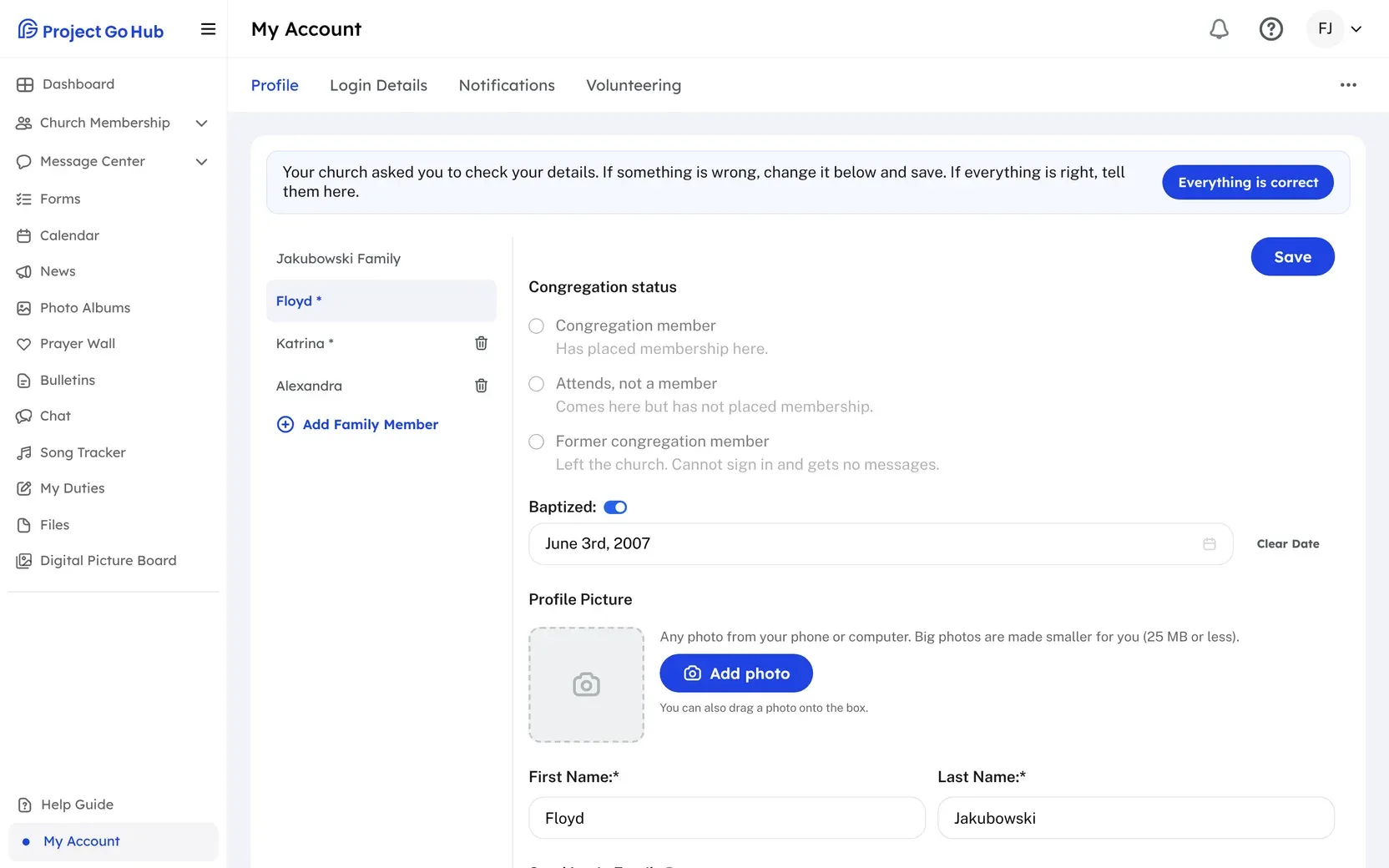
- If everything is right, click Everything is correct.
- If something is wrong, change it on the page and click Save. See Update your profile.
If it does not work
Section titled “If it does not work”- “This link does not work”, with “The link has expired or was replaced by a newer one.”: The link works for 30 days, and only the newest one works. Ask your church office to send a new one, or answer in My Account.
- “Too many tries”: The link was opened many times. Try again in an hour.
- “Thank you, your church already has your answer.”: You answered before. You can still make changes.
Still stuck?
Section titled “Still stuck?”Use the Contact support page, or email [email protected]. Tell us your church name and what you tried.
Was this page helpful?
We record searches and page feedback, with no names, emails or IP addresses, to improve these articles.