
Publish the worship schedule
Publishing sends the notice of a duty to the member. Until you publish, a duty is a draft that only admins can see.
Who can do this: Your role needs Edit access to Duty Assignments.
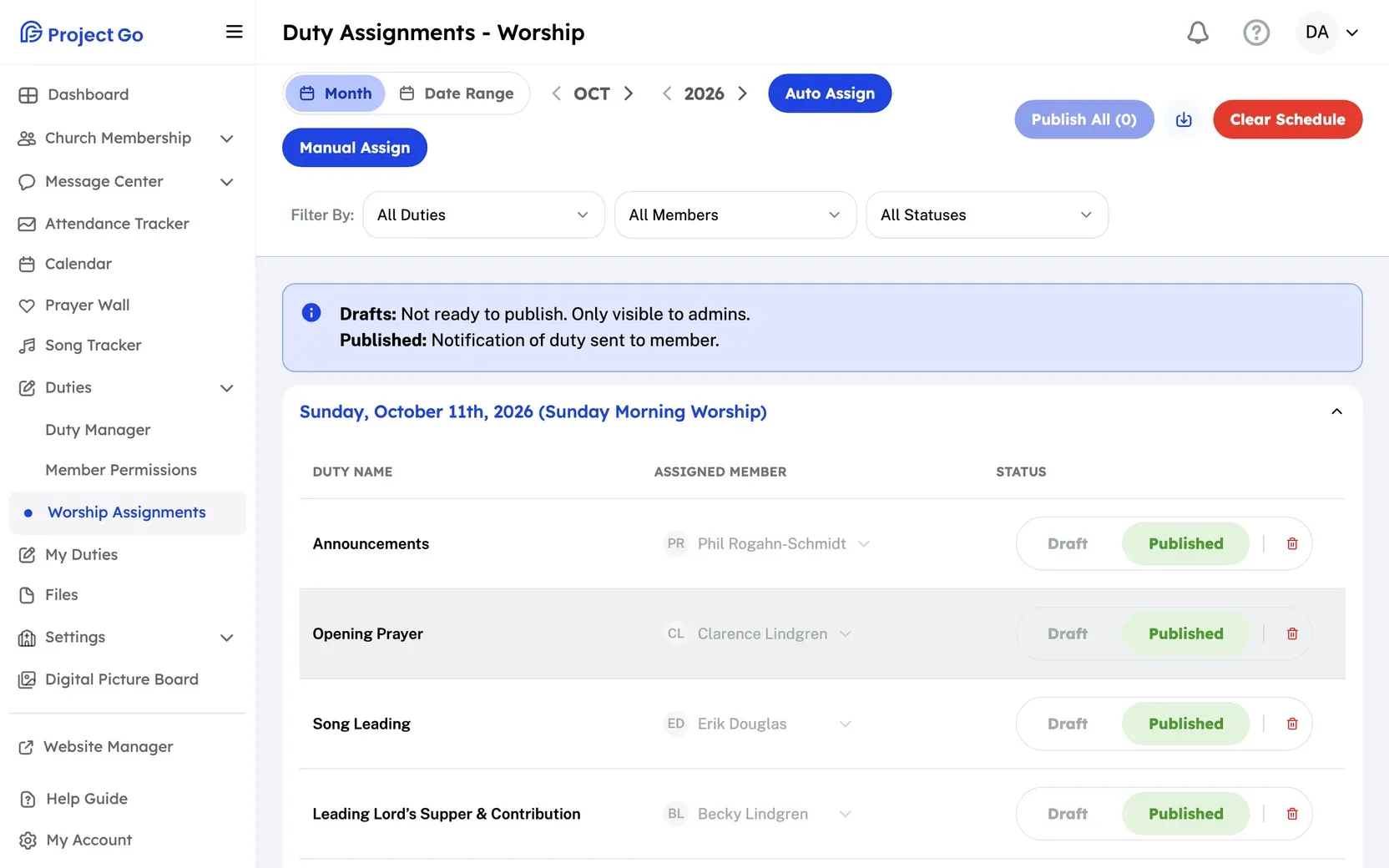
- On a computer, click Duties in the menu, then Worship Assignments. On a phone, tap More, then Duties, then Worship Assignments.
- Check that each duty has the right member.
- To publish one duty, click Published in its Status column. On a phone, tap Publish on the duty.
- To publish every draft that has a member, click Publish All. The number on the button is how many duties it will publish. On a phone, Publish All is under the Actions button.
- In the Publish All Worship Duties box, click Publish All again.
A duty needs a member before you can publish it.
To fill in members first, see Create the worship schedule automatically or Change who is assigned to a duty.
If it does not work
Section titled “If it does not work”“A user must be assigned to the duty before it can be published.”: Choose a member for the duty, then publish it.
Still stuck?
Section titled “Still stuck?”Email info@project-go.com. Tell us your church name and what you tried.
Was this page helpful?
We record searches and page feedback, with no names, emails or IP addresses, to improve these articles.