
Publish a quarter's classes
Do this when your plan for a quarter is ready. Members see only published classes. Drafts are seen by the office only.
Who can do this: you need Edit access to Class Tracker. See Understand roles and access levels.
Publish every draft in a quarter
Section titled “Publish every draft in a quarter”- On a computer, click Manage > Attendance & Records > Class Tracker in the menu. On a phone, tap Menu at the bottom, then go to Manage > Attendance & Records > Class Tracker.
- On the All Classes tab, choose the quarter in Quarter. Or choose Other dates and fill in From and To.
- Check the button at the top. It says how many drafts it will publish, for example Publish 3 drafts. It is gray when there are none.
- Click Publish 3 drafts.
- Read the question in the Publish classes window. Click Publish.
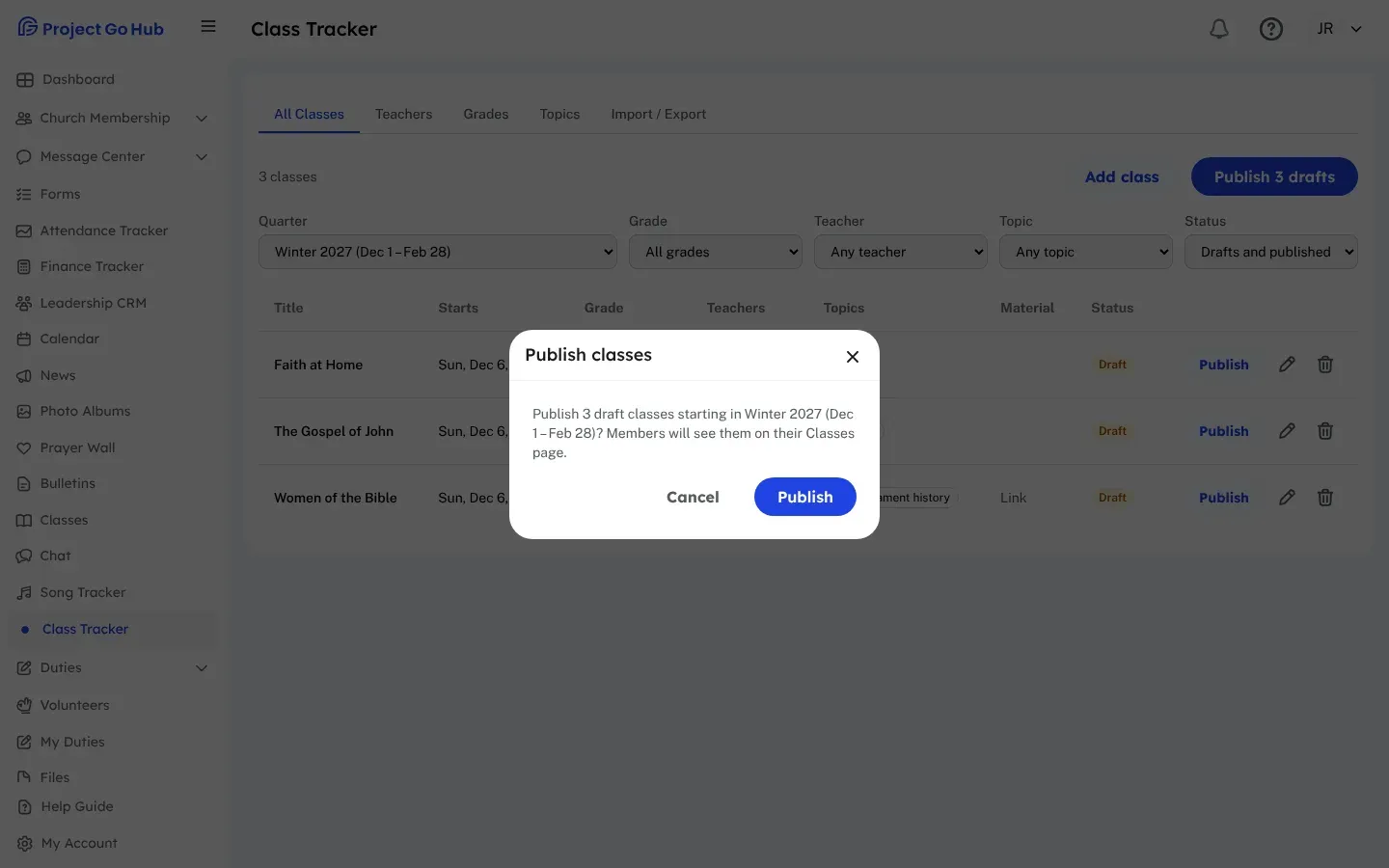
The toast says how many classes were published and that members can see them now.
Publish or unpublish one class
Section titled “Publish or unpublish one class”On the All Classes tab, click Publish on a draft. Click Unpublish on a published class to move it back to drafts. Members stop seeing it.
You can also turn Published on or off when you add or change a class.
Good to know
Section titled “Good to know”- Publish works on the dates you chose in Quarter. The Grade, Teacher, Topic and Status filters do not change it. Every draft whose start date is in those dates is published.
- The button counts only drafts. Classes that are already published are not changed.
- Members see the classes on their Classes page. See See the church’s Bible classes.
- Classes you import are drafts unless the file says Published.
Related tasks
Section titled “Related tasks”Still stuck?
Section titled “Still stuck?”Use the Contact support page, or email [email protected]. Tell us your church name and what you tried.
Was this page helpful?
We record searches and page feedback, with no names, emails or IP addresses, to improve these articles.