
Let a role post announcements
Do this when you want more people than the News editors to post announcements, such as a youth minister.
Who can do this: Your role needs Edit access to Role Management.
- On a computer, click Manage > Settings > Role Management in the menu. On a phone, tap Menu at the bottom, then go to Manage > Settings > Role Management.
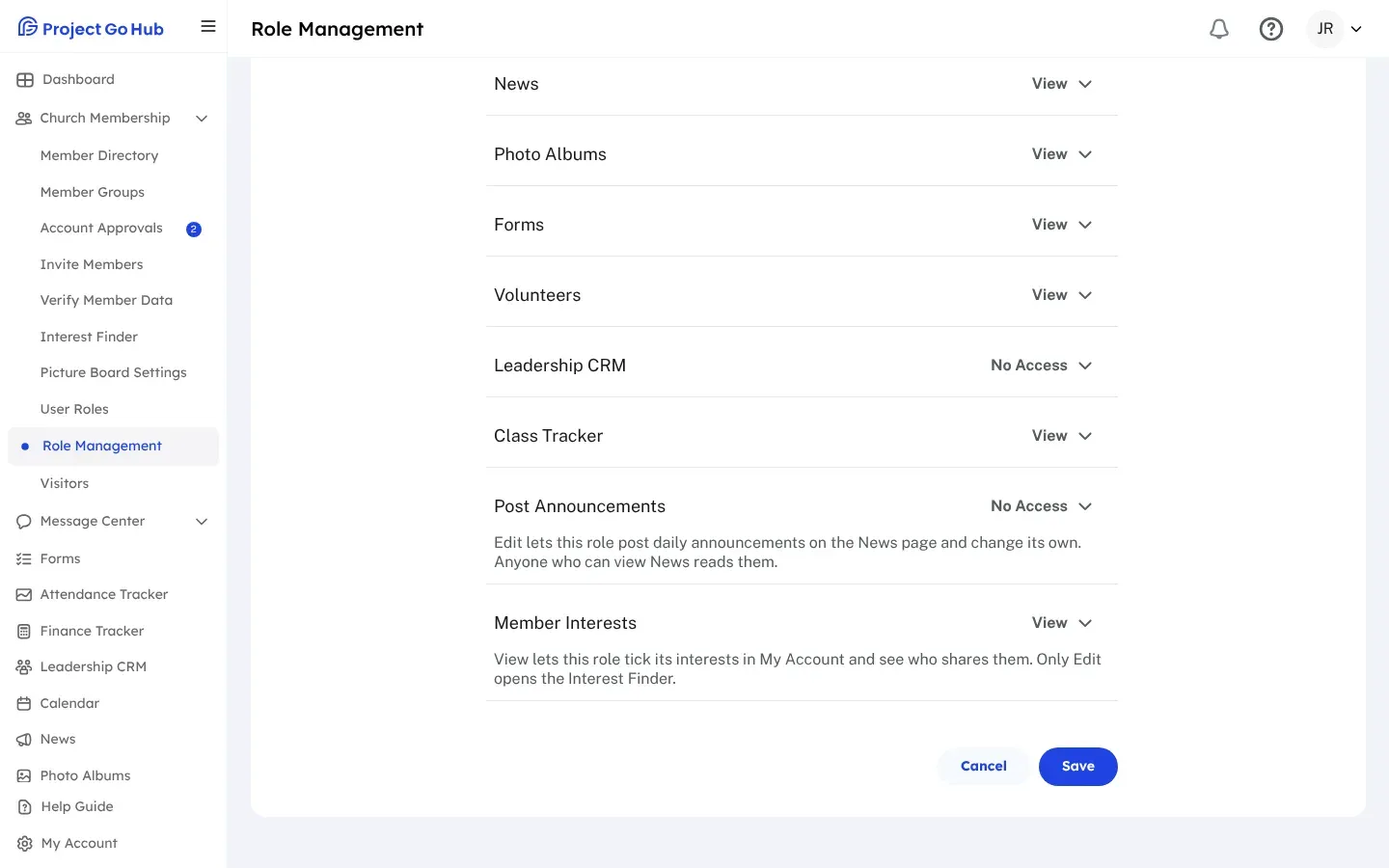
- On the right of the role’s row, click the pencil icon. The Edit role form opens.
- Find Post Announcements.
- Under Access Type, choose Edit.
- At the bottom, click Save.
You see Role updated!
Good to know
Section titled “Good to know”- Post Announcements has only two choices, Edit and No Access. A role you do not change stays on No Access, so members cannot post until you do this.
- People with this access can post announcements. They can change and delete only their own, and they cannot change News posts.
- To read announcements, a role needs View access to News.
- An announcement posted this way shows Posted by a member.
- The built-in Admins and Members roles cannot be changed. To let ordinary members post, create a role and give it to the people who should post. See Change a person’s role.
- Admins can post. A role with Edit access to News can already post and manage all announcements.
See Understand roles and access levels and Change a role.
Still stuck?
Section titled “Still stuck?”Use the Contact support page, or email [email protected]. Tell us your church name and what you tried.
Was this page helpful?
We record searches and page feedback, with no names, emails or IP addresses, to improve these articles.