
Move money between accounts or funds
Do this when money moves inside your church’s books, but does not come in or go out. For example:
- Between bank accounts: checking to savings, or checking to petty cash.
- Between funds: the General Fund to the Building Fund.
A transfer takes the amount off one balance and adds it to the other. It is not income or an expense.
Who can do this: You need Edit access to Finance Tracker. If you do not see Finance Tracker in the menu, ask your church admin.
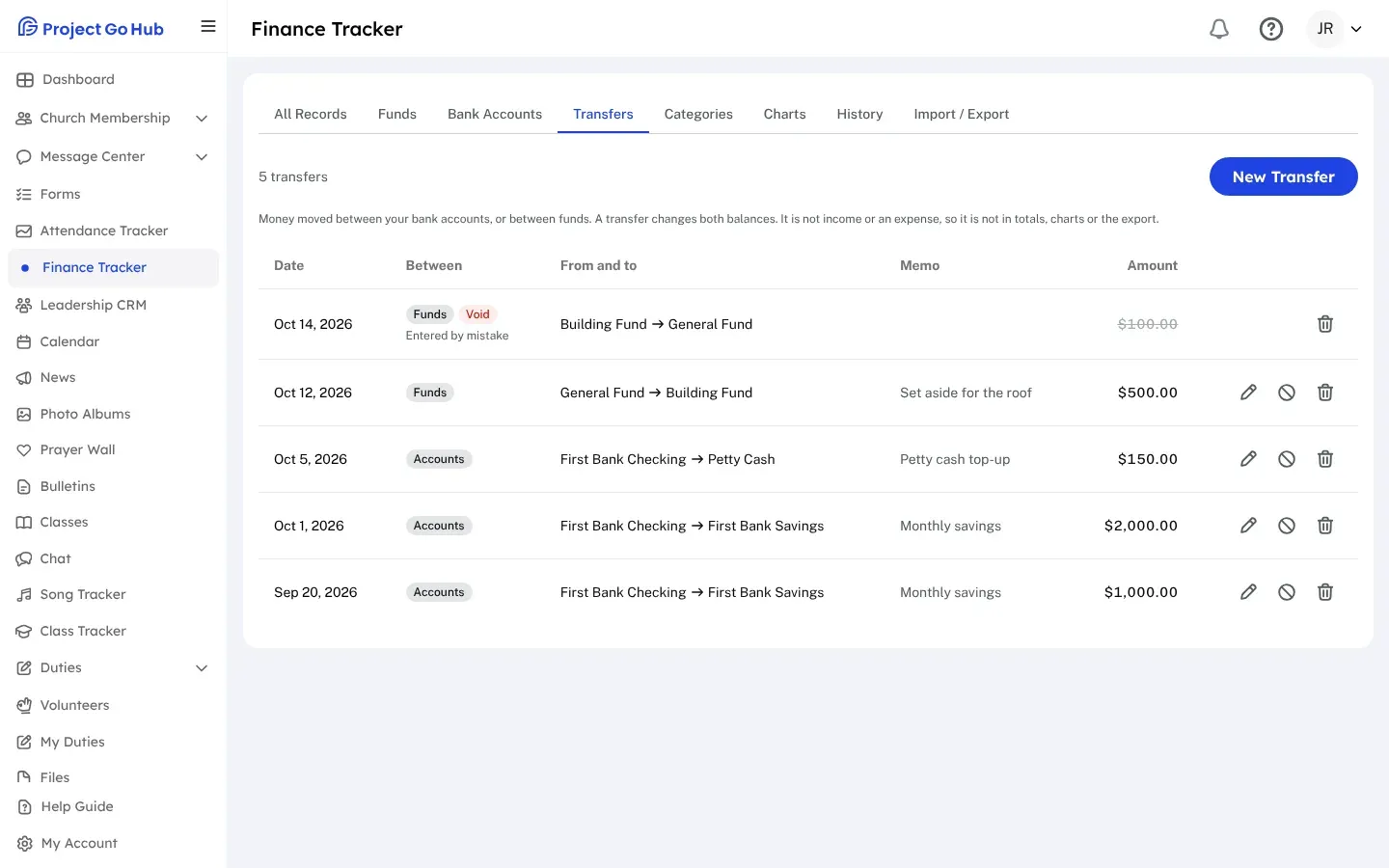
Make a transfer
Section titled “Make a transfer”- Open the Finance Tracker. On a computer, click Manage > Attendance & Records > Finance Tracker in the menu. On a phone, tap Menu at the bottom, then go to Manage > Attendance & Records > Finance Tracker.
- Click the Transfers tab. On a phone, if you do not see the tab, slide the tabs sideways.
- Click New Transfer.
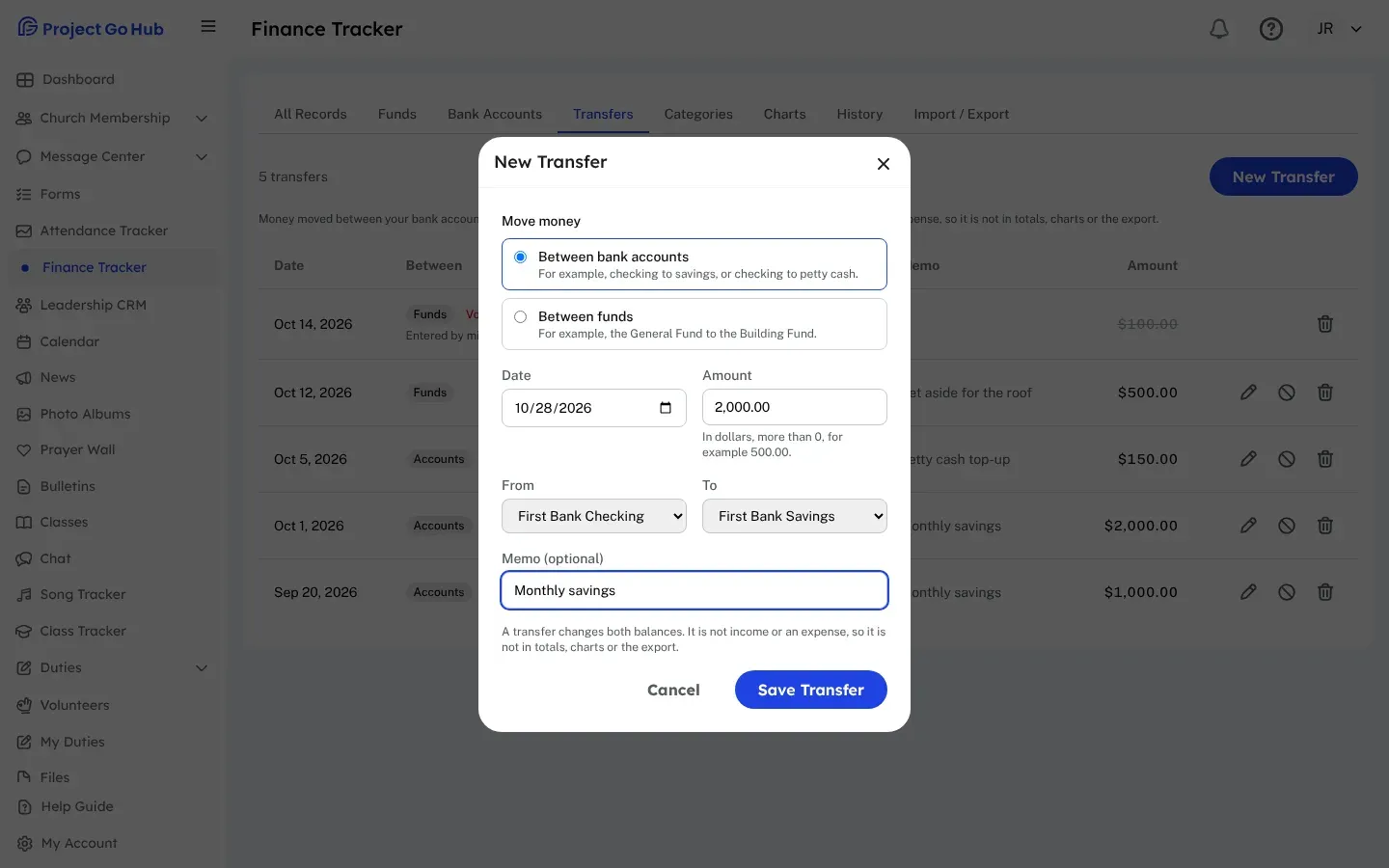
- Under Move money, choose Between bank accounts or Between funds.
- In Date, choose the day. It starts on today.
- In Amount, type the amount in dollars, for example 500.00.
- In From, choose where the money leaves. In To, choose where it goes.
- If you want, type a Memo (optional), for example Monthly savings.
- Click Save Transfer.
You see Transfer saved. The transfer shows on the Transfers tab, and both balances change on the Bank Accounts or Funds tab.
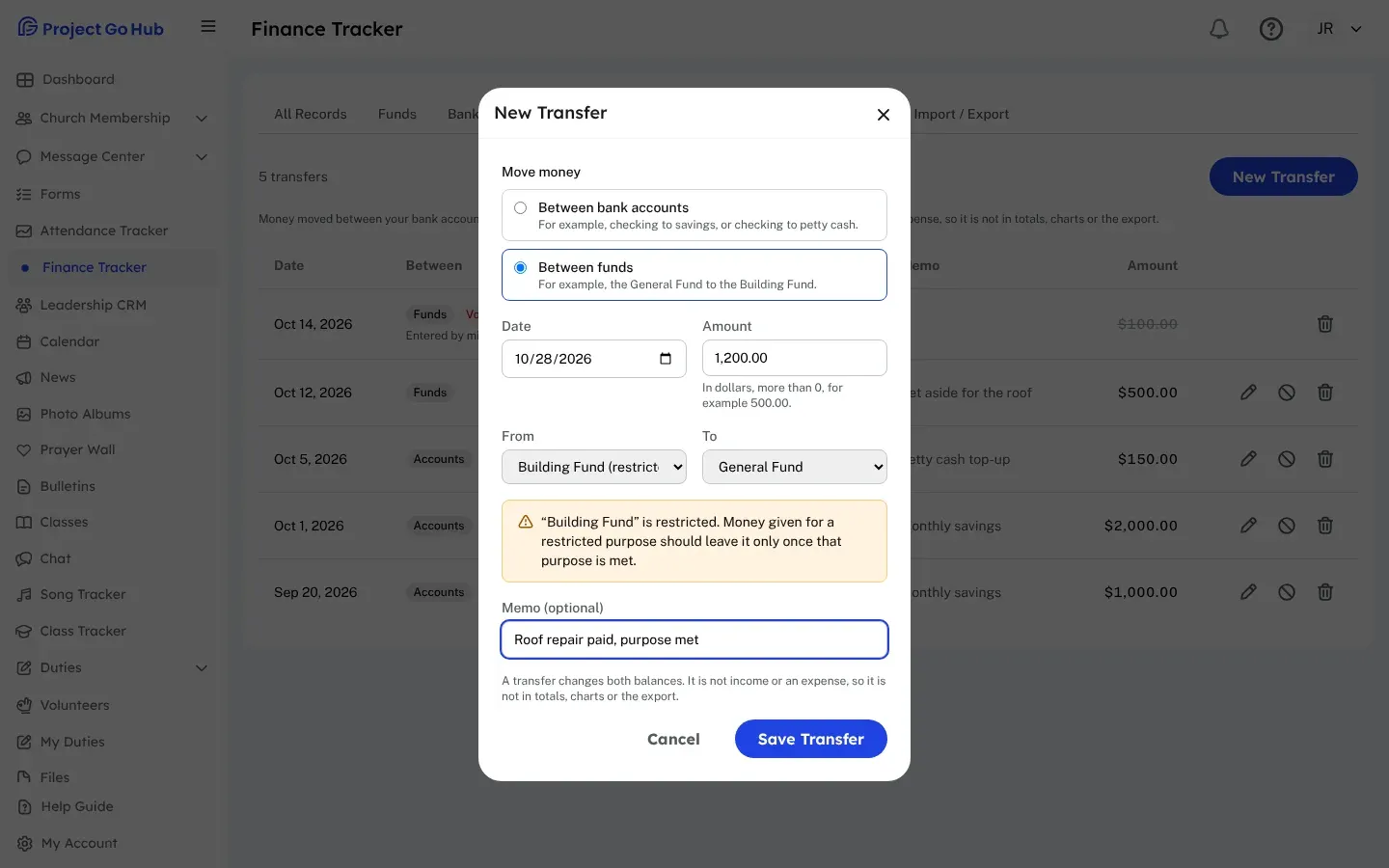
Move money out of a restricted fund
Section titled “Move money out of a restricted fund”When From is a restricted fund, a yellow note says, for example, “Building Fund” is restricted. Money given for a restricted purpose should leave it only once that purpose is met. You can still save the transfer. Do it only when the money’s purpose is met, for example after the roof it was given for is paid for.
Read the list
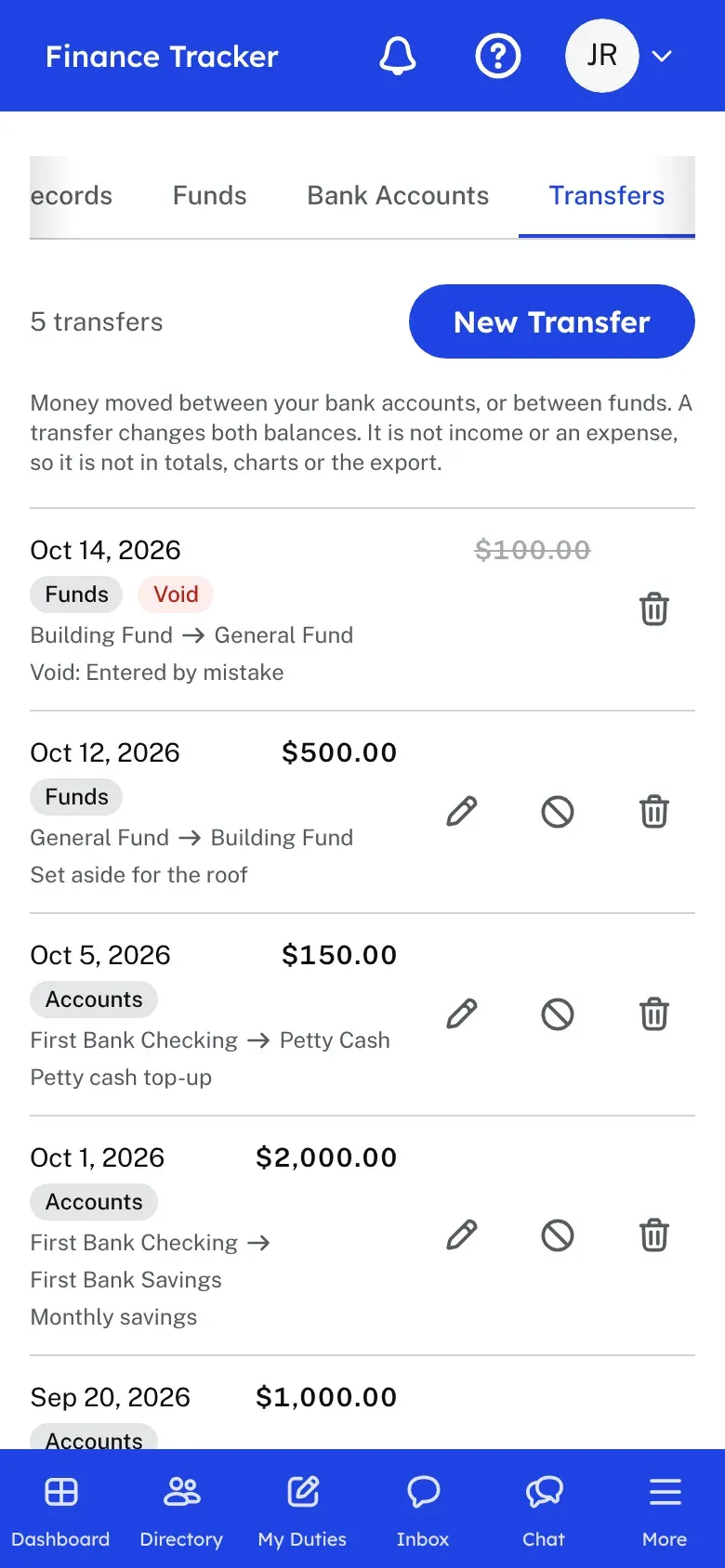
Section titled “Read the list”Each transfer shows its Date, whether it is Accounts or Funds under Between, where it went under From and to (for example First Bank Checking → First Bank Savings), the Memo and the Amount. The newest is first. The list shows 50 transfers a page.
On a phone, each transfer is a card with the same details.
Change, void or delete a transfer
Section titled “Change, void or delete a transfer”- To change it, click the pencil next to it. Change the Date, Amount, From, To or Memo (optional), then click Save Transfer.
- To void it, click the circle with a line through it. If you want, type a Reason (optional), then click Void Transfer. It stays in the list, marked Void and crossed out, and moves no money.
- To delete it, click the trash can, then click Delete Transfer.
Good to know
Section titled “Good to know”- A transfer is not counted in Total Income, Total Expenses, the charts or the export. It does not show on All Records.
- You cannot change a transfer from between accounts to between funds, or back. Delete it and make a new one.
- From and To must be different. If they are the same, you see Choose two different accounts. (or funds), and Save Transfer stays off.
- A transfer between bank accounts needs at least two accounts. If you have fewer, the window says You need at least two bank accounts for this. Add them on the Bank Accounts tab. See Set up bank accounts.
- The General Fund can be the From or the To. See Set up funds.
- A transfer dated before a bank account’s opening date is listed, but it does not change that account’s balance.
- A memo and a void reason can each have up to 200 characters.
- A void cannot be undone, and a void transfer cannot be changed. It can still be deleted. You cannot undo a delete, but the History tab keeps what it was.
- A transfer dated in a closed month shows a lock instead of the buttons. Nobody can add, change, void or delete it, or move a transfer into or out of that month. See Close a month.
- A bank account or fund that any transfer uses, even a void one, cannot be deleted. Rename it instead.
- The History tab lists every transfer added, changed, voided or deleted. See See the history of your finance records.
- If two people change the same transfer at the same time, the second Save is refused with a red message: Someone else changed this transfer. Reload to see their changes. Reload the page, check what they changed, then make your change again.
Still stuck?
Section titled “Still stuck?”Use the Contact support page, or email [email protected]. Tell us your church name and what you tried.
Was this page helpful?
We record searches and page feedback, with no names, emails or IP addresses, to improve these articles.