
Stop or restart the daily announcements email
Do this when you do not want a daily email with the church’s new announcements, or you want it again.
Who can do this: Everyone who gets the email. Your church must have the Daily Email turned on.
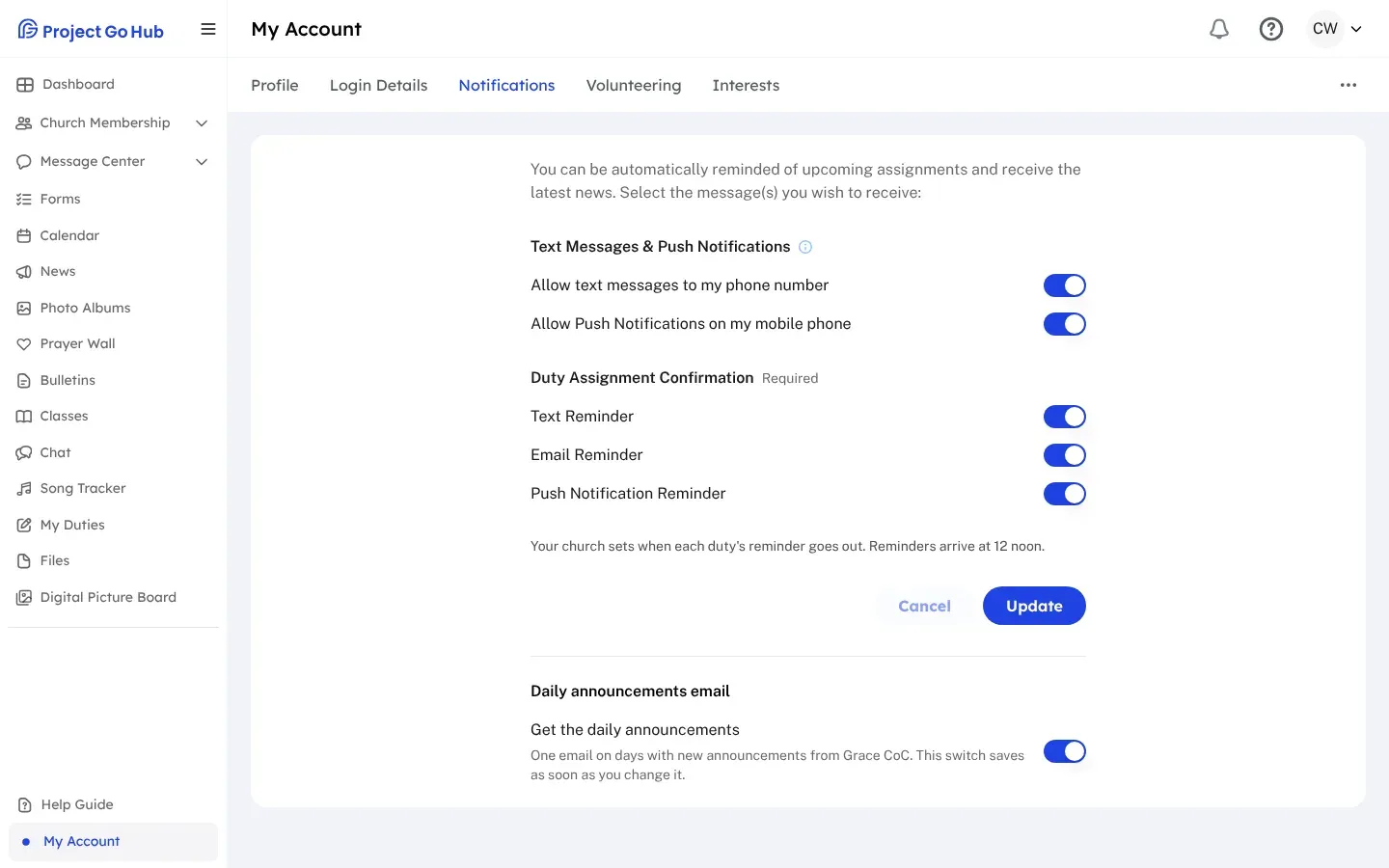
- On a computer, click My Account at the bottom of the menu. On a phone, tap Menu at the bottom, then My Account.
- Click the Notifications tab.
- At the bottom, find Daily announcements email.
- Click the switch Get the daily announcements to turn it off. Click it again to turn it back on.
You see Email settings updated! The switch saves as soon as you change it. You do not need to click Update.
Use the link in the email instead
Section titled “Use the link in the email instead”Every Daily Email ends with Unsubscribe from the daily announcements. Click it, then click Unsubscribe. You see You are unsubscribed. This stops only the daily announcements email. Your church’s other emails still come. To change your mind, click Subscribe again on that page. Many email apps also show an Unsubscribe button at the top of the email, which does the same.
When the email comes
Section titled “When the email comes”Once a day, at the time your church picked, only on days with new announcements. See Turn on the Daily Email.
Good to know
Section titled “Good to know”- The Daily announcements email section shows only while your church sends the Daily Email to members, and only if your role can view News. If you do not see it, you do not get the email.
- If you have no email address on your account, you do not get the Daily Email.
- If you unsubscribed from all your church’s emails, you do not get the Daily Email either. See Stop and restart church emails.
- You can always read the announcements on the Announcements tab. See Read and search announcements.
Still stuck?
Section titled “Still stuck?”Use the Contact support page, or email [email protected]. Tell us your church name and what you tried.
Was this page helpful?
We record searches and page feedback, with no names, emails or IP addresses, to improve these articles.