
Allow a member to do a duty
A member can be given a duty only after you allow it. Do this in Member Permissions.
Who can do this: Your role needs Edit access to Member Permissions.
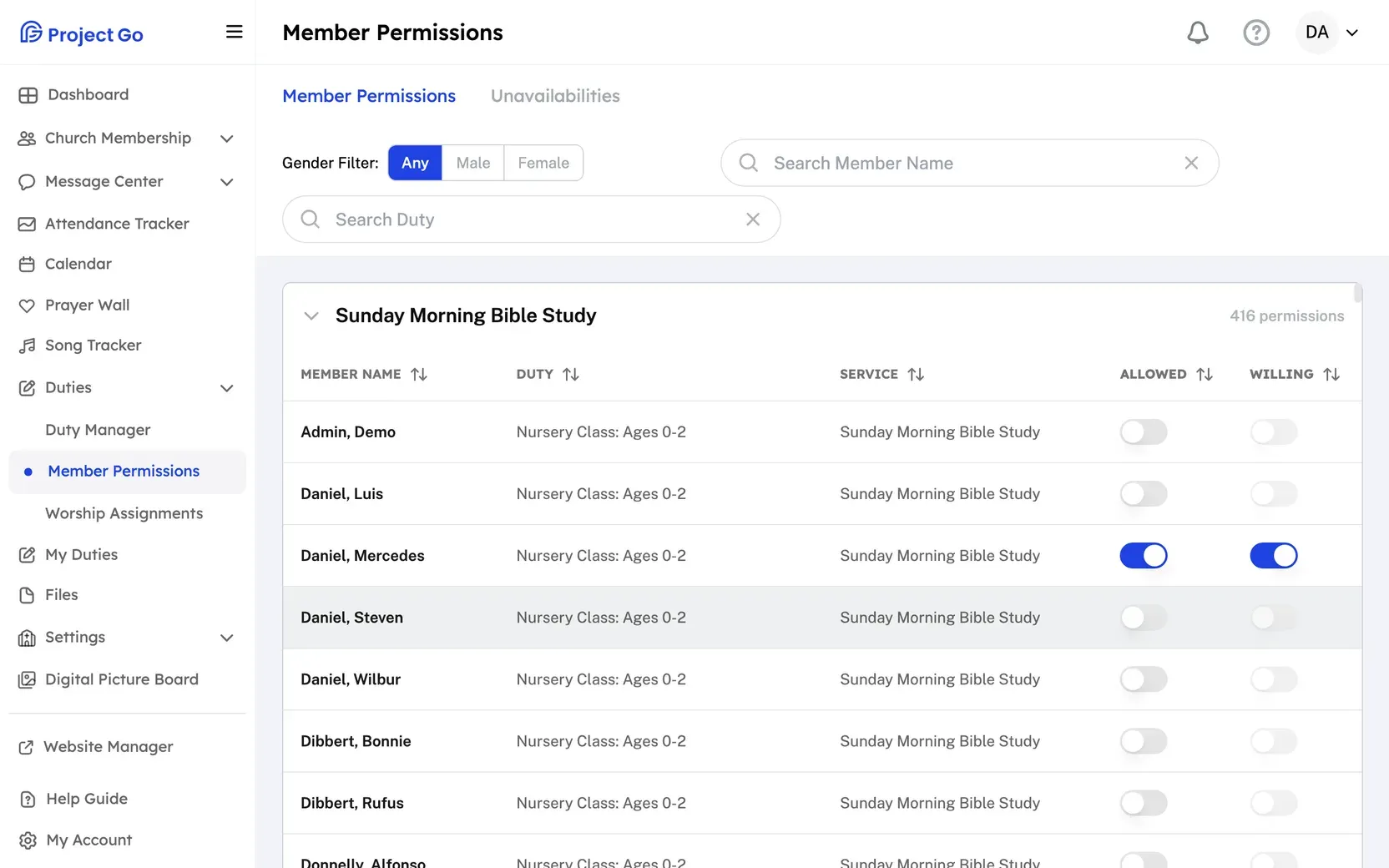
The duties come from the Duty Manager. See Add duties to a service. Each row is one member and one duty. Rows are grouped by service.
- On a computer, click Duties in the menu, then Member Permissions. On a phone, tap More, then Duties, then Member Permissions.
- Open the Member Permissions tab.
- Click a service name to open or close its rows. On a phone, the service groups start closed.
- Find the row for the member and the duty.
- Turn on Allowed.
- Turn on Willing if the member agreed to do this duty.
Each switch saves right away. You see Permission successfully updated.
Good to know
Section titled “Good to know”- Allowed is your decision. Willing is the member’s choice. A member needs both turned on to be given the duty.
- Willing is locked until Allowed is on.
- Members can set Willing themselves, for the duties you allowed. See Choose the duties you are willing to do.
- Click a row to see the member’s profile.
Find a member or a duty
Section titled “Find a member or a duty”- Next to Gender Filter:, click Any, Male or Female.
- Type a name in Search Member Name.
- Type a duty in Search Duty.
You can use one filter or all three. On a phone, click the filter button to open the Filter Permissions panel.
If a member is not in the list
Section titled “If a member is not in the list”- A duty set to Male or Female shows only members of that gender. A duty set to Any shows everyone.
- A member with no gender in their profile does not show for Male or Female duties. Add the gender in the Member Directory. See Change a member’s profile.
- Former members and deceased members are not listed.
Still stuck?
Section titled “Still stuck?”Email info@project-go.com. Tell us your church name and what you tried.
Was this page helpful?
We record searches and page feedback, with no names, emails or IP addresses, to improve these articles.