
Ask members to check their details
Use Verify Member Data to keep your directory up to date. Each family gets an email with its address, phone numbers and email, and a Check my details button. They say everything is correct, or make changes, with no sign-in. The link works for 30 days.
People who do not answer stay Waiting. Nothing about them changes.
Who can do this: You need Edit access to Member Directory.
Send the requests
Section titled “Send the requests”- Click Membership in the menu, then Verify Member Data. On a phone, tap Menu at the bottom, then go to Manage > Membership > Verify Member Data.
- Leave Only email family heads (one email per family) on to send one email per family, to the family head. If the head cannot be emailed, it goes to another adult in the family who can be. Turn it off to email each member.
- Click Send request to with the number, for example Send request to 43 not asked.
- Click Send requests.
A bar shows the emails going out. When it is done, you see how many requests were sent. People who cannot be emailed are left out. Print the list for them (see below).
To email only some members, tick the box next to each one, then click Email with the number picked, for example Email 2 picked, and click Send. The picked members get a request even if they already verified. Anyone emailed in the last 24 hours is skipped.
See who answered
Section titled “See who answered”The counts at the top show how many people are Verified, Waiting, Not asked and Can’t email. Click a filter above the list to see only those people. The list opens on Not verified. To find someone, type in Search by name, family or email.
On a computer, the list is a table:
- Name and Family: the member, and their family.
- Status: Not asked, Waiting, Verified or Can’t email.
- Emailed: when they were last emailed, and how many times.
- Answered: when they answered, and whether it was by the link or by the office. Changed means they changed something.
- Last verified: the month they last verified, or Never.
On a phone, each person is a card with the same details.
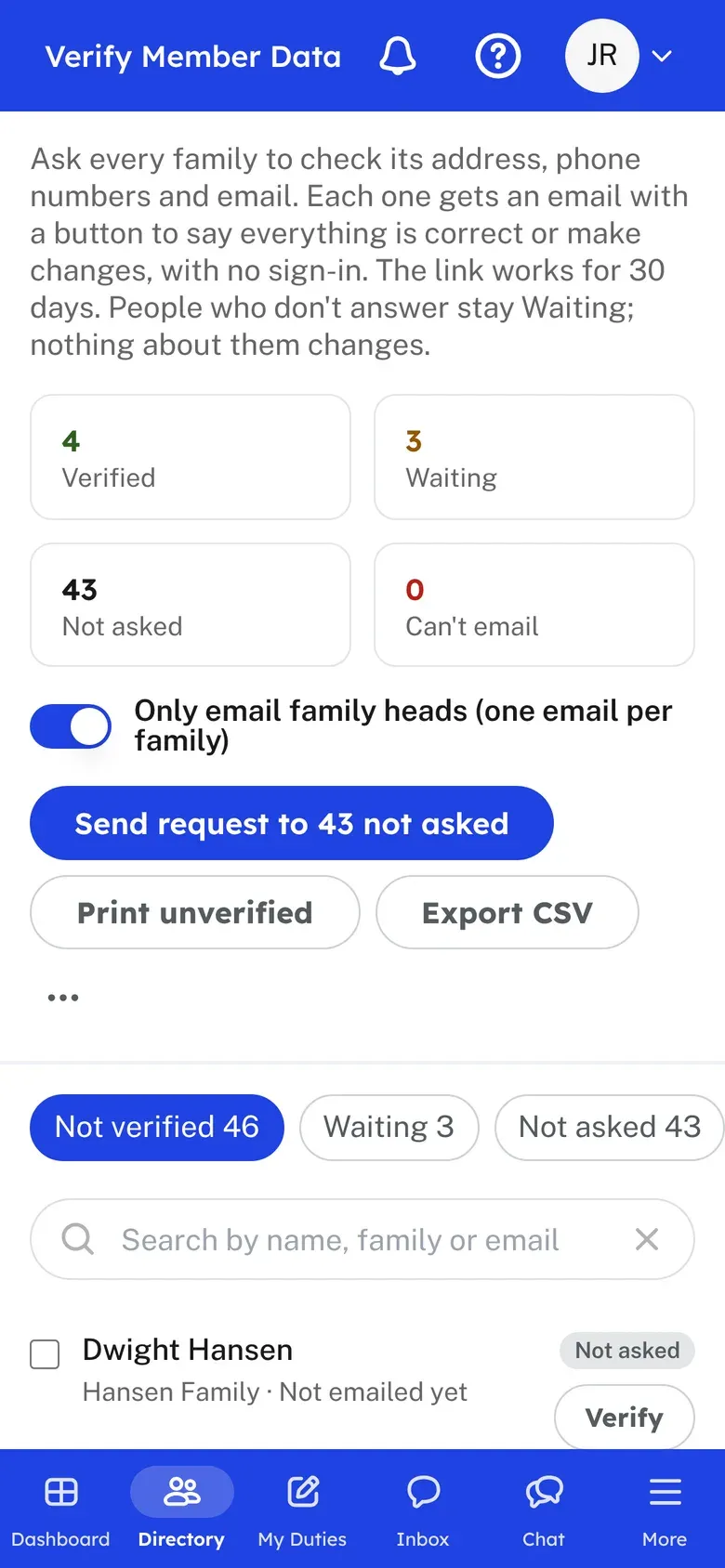
Can’t email means the person has no email on file, unsubscribed from church email, or their email bounced.
Remind the people still waiting
Section titled “Remind the people still waiting”- Click Remind with the number, for example Remind 12 waiting.
- Click Send reminders.
Only people still Waiting get a new email. Anyone emailed in the last 24 hours is skipped.
Mark someone verified yourself
Section titled “Mark someone verified yourself”When a member tells you in person that their details are right, click Verify on their row. They show as Verified, by the office.
Print or export the people not verified
Section titled “Print or export the people not verified”- Print unverified: prints one block per family not yet verified, with blank lines for changes. Hand it out on Sunday. This button does not show in the phone app.
- Export CSV: downloads the people not verified as a spreadsheet file.
Start again
Section titled “Start again”Once a year, or when you want everyone to check again:
- Click the … button next to Export CSV.
- Click Reset all verifications.
- Click Reset all.
Everyone goes back to Not asked, and links already sent stop working. Each member’s Last verified date is kept. Nothing about the members themselves changes.
If it does not work
Section titled “If it does not work”- “No one to send to: the members picked can’t be emailed, or were emailed in the last 24 hours.”: Pick other members, or wait a day.
- A family changed their email but it still shows the old one: A new email changes only when its owner opens the confirmation link sent to it.
Related tasks
Section titled “Related tasks”Still stuck?
Section titled “Still stuck?”Use the Contact support page, or email [email protected]. Tell us your church name and what you tried.
Was this page helpful?
We record searches and page feedback, with no names, emails or IP addresses, to improve these articles.